





An Unlock Teams Premium button appears in Microsoft Teams for users, and many keep asking what it is. Some even click it and start a trial. That’s something most organizations want to avoid. In this article, you will learn how to remove the Unlock Teams Premium button in Microsoft Teams.
Teams Premium Button in Microsoft Teams
Microsoft Teams shows the Unlock Teams Premium button when you click on the three dots in the menu bar.
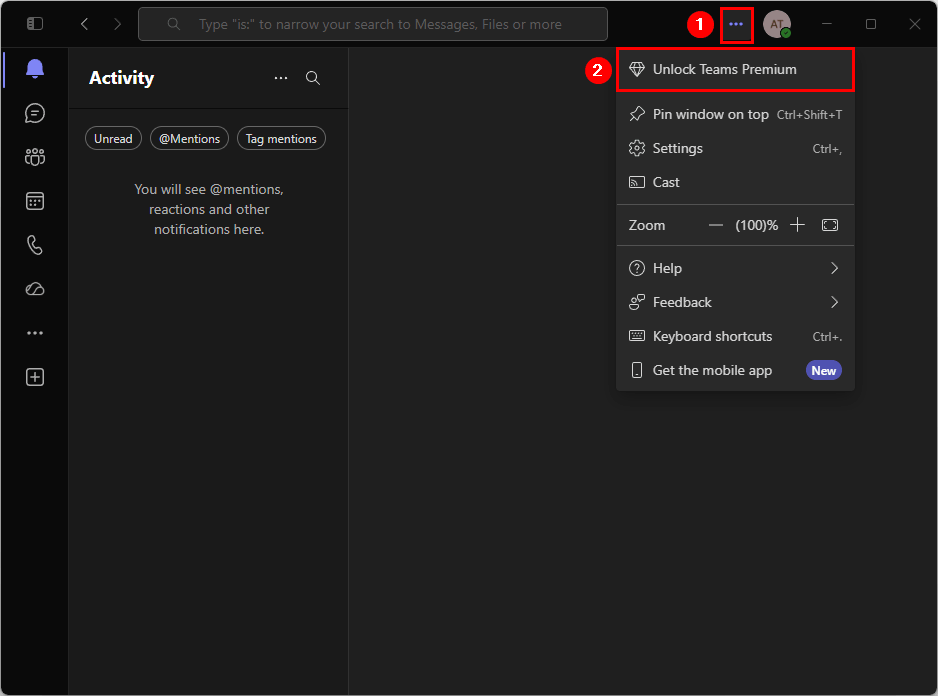
Once you click on the Unlock Teams Premium button, the user can start a trial, which is free and requires no card required.

Do you want this in your organization? Clearly not. Let’s look at how to disable the Unlock Teams Premium button in Microsoft Teams.
Disable Unlock Teams Premium button in Microsoft 365
To remove the Unlock Teams Premium button in Microsoft Teams using the Microsoft 365 admin center, follow the steps below:
- Sign in to Microsoft 365 admin center
- Click Settings > Org Settings
- Click Services tab
- Click Self-service trials and purchases

- Click on Microsoft Teams Premium
- Select Do not allow
- Click Save changes

Disable Unlock Teams Premium button with PowerShell
To remove the Unlock Teams Premium button in Microsoft Teams with PowerShell, follow the steps below:
- Install the MSCommerce PowerShell module.
Install-Module -Name MSCommerce- Connect to MSCommerce PowerShell.
Connect-MSCommerce- Find the Teams Premium policy value.
Get-MSCommerceProductPolicies -PolicyId AllowSelfServicePurchase | Where-Object { $_.ProductName -like "*Teams Premium*" }The output shows the PolicyValue as Enabled or Disabled.
ProductName   PolicyId                 PolicyValue ProductId
-----------   --------                 ----------- ---------
Teams Premium AllowSelfServicePurchase Enabled CFQ7TTC0RM8K- Set the policy value to Disabled for Teams Premium.
$policy = Get-MSCommerceProductPolicies -PolicyId AllowSelfServicePurchase | Where-Object { $_.ProductName -like "*Teams Premium*" }
Update-MSCommerceProductPolicy -PolicyId AllowSelfServicePurchase -ProductId $policy.ProductId -Value "Disabled"
The output appears and shows the PolicyValue status as Disabled.
ProductName   PolicyId                 PolicyValue ProductId
-----------   --------                 ----------- ---------
Teams Premium AllowSelfServicePurchase Disabled    CFQ7TTC0RM8K
After disabling Unlock Teams Premium button in Microsoft Teams
When the user clicks on the three dots in the menu bar, the Unlock Teams Premium button will no longer appear.
Note: It takes 24-48 hours before the button gets removed from Microsoft Teams. So you need to have patience.

That’s it!
Read more: How to Clear Microsoft Teams Cache »
Conclusion
You learned how to remove the Unlock Teams Premium button in Microsoft Teams. By disabling self-service trials, you can prevent users from accidentally starting Teams Premium trials and reduce confusion about features that are not licensed in your organization. This helps maintain a consistent user experience and keeps license management under control.
Did you enjoy this article? You may also like How to Restrict Access to Storage Accounts in Outlook on the web. Don’t forget to follow us and share this article.