





Powershell Command helps the user to import file easily to Exchange mailboxes effectively if a user follows the correct command in a proper way, otherwise, a user faced a different kind of error such as large items size, bad items limit and lead to failed process. One of the frequently occurring error in Exchange is ‘new-mailboximportrequest baditemlimit failed’.
Moving Outlook mailboxes to Microsoft Exchange Server has always been a challenging task. Exchange users can Import PST file to Exchange environment with the help of two methods.
a) PowerShell Command – New-mailboximportrequest
b) Exchange Admin Center – Import / Export option
Take a look on some scenarios related to this issue:
“I was having a PST file of 11GB. I wanted to import that PST to Exchange. When I ran the import without BadLimit it failed with the event 1100. Then I tried to run it with BadLimit then also it failed to import PST file to Exchange. I am not able to figure out what is the main issue. Please guide me how can I eliminate this issue.
Getting error ‘new-mailboximportrequest baditemlimit’ while importing data into Exchange ailboxes. But only mailboxes data was imported and after that mailbox process failed . I do not know what to do to resume this process again
Reasons Behind New-MailboxImportRequest Failed Baditemlimit
There can be multiple reasons that lead to failure of the import process. The two possible reasons due which the user is not able to import Outlook PST files to Exchange are:
Large Items: When the size of the emails which the user wants to import is larger than the specified size on the Exchange Transport components, connectors etc. Then it results in the failure of the import process.
Bad Items: Since Bad items limit error arise when a corrupt item stored in PST mailboxes can’t be moved to the mailbox of Exchange. It also included the missing items of source mailbox.
How to Resolve New-Mailboximportrequest Baditemlimit In Exchange 2013/ 2010 / 2007 Environment?
To fix this issue, a user can repair the PST File to the corruption of mailboxes items or use Parameter “Unlimited” to solve this issue temporally. You need to put parameter or you can use an integer value from 0 to unlimited, but if you use integer value greater than 51, need to use other parameter known as “AcceptLargeDataLoss“, if parameter not added & the number of corrupt mailbox items increased, new-mailbox import request Failed to occur. Use Command Syntax:
New-MailboxImportRequest -Mailbox <MailboxOrMailUserIdParameter> -FilePath “\\fileserver\usermail.pst” -BadItemLimit 200 -AcceptLargeDataLoss
Using the above cmdlet, you can import the data but chances are high of losing user data items such as emails, contacts, calendars details.
Manual Approach Followed by the Users to Import PST Files to Exchange
Most of the user follow Powershell commands In Exchange. The method users usually implement to move PST to Exchange is discussed below:
1. First, the user assigns the rights to himself/herself to import mailboxes:
New-ManagementRoleAssignment –Role "Mailbox Import Export" –User Administrator
2. To import a single PST file:
New-MailboxImportRequest -Mailbox Peter -FilePath \exchangePSTarchiveoutlook.pst
3. To import multiple mailboxes:
Dir \exchsvrPSTarchive*.pst | %{ New-MailboxImportRequest -Name Import20120527 -BatchName Import20120527 -Mailbox $_.BaseName -FilePath $_.FullName}
4. Check the Status of all the recent imports:
Get-MailboxImportRequest
5. Output Report of the import file:
Get-MailboxImportRequestStatistics PeterImport20120527 -IncludeReport | fl > c:importsreport.txt
6. A report containing all the current failed imports
Get-MailboxImportRequest -Status Failed | Get-MailboxImportRequestStatistics -IncludeReport | fl > c:importsallfailedreport.txt
7. To resume all the failed imports
Get-MailboxImportRequest -Status Failed | Resume-MailboxImportRequest
Fix New-MailboxImportRequest Baditemlimit via SysTools Exchange Importer
a) Easily move PST emails, calendars, contacts, tasks, journals etc. to Exchange.
b) Easy-to-use interface which makes easy for the users to work with it.
c) No data loss issue associated with the utility.
d) Also, transfer password protected and inaccessible PST file to Exchange Server
Working Guide – To avoid New-MailboxImportRequest Baditemlimit
1. First, Download and Install Exchange Import tool on your local machine

2. Click on the Add File/Folder/Network Files to import numerous PST File into Exchange on the initial screen of the tool.

3. Now, insert the Admin SMTP Address, Password, Exchange Version etc. and all the other details also to start the import process.

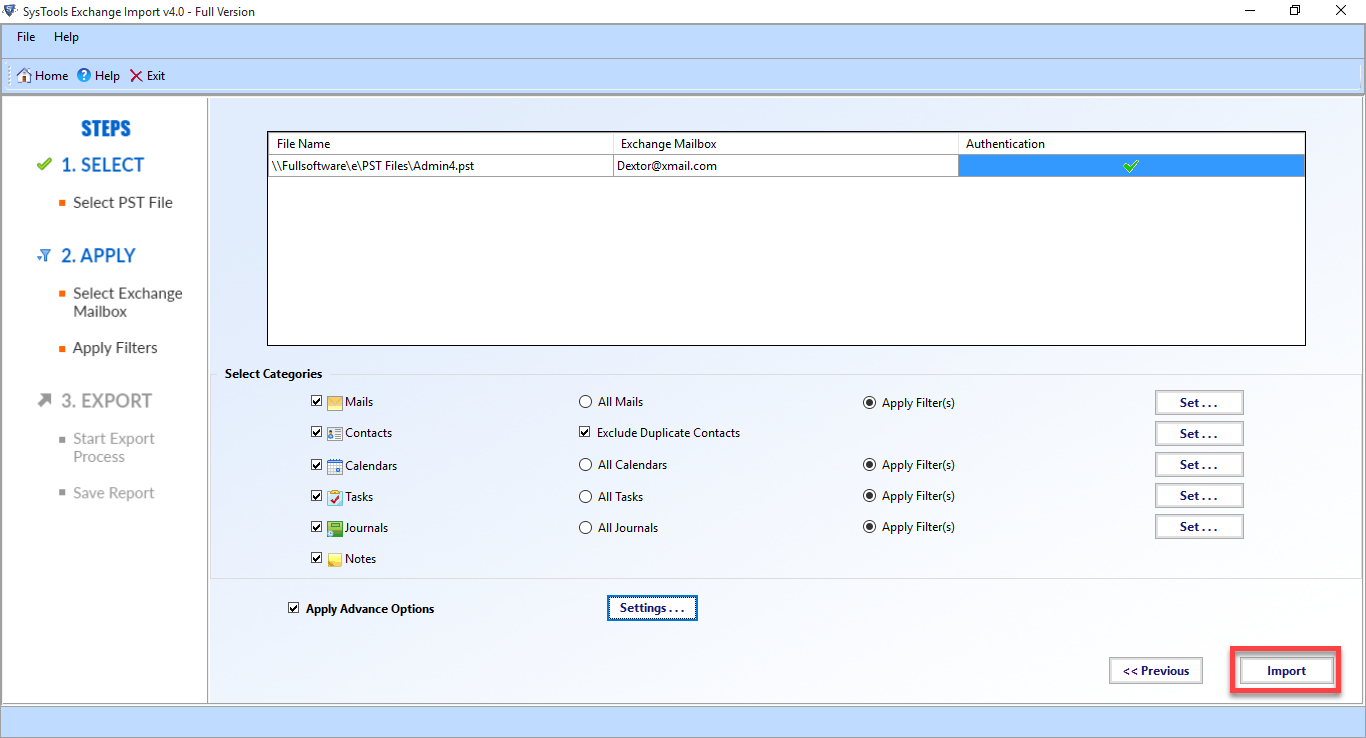
4. After that, specify the Exchange mailbox name and then select categories such as emails, calendars, contacts, journals etc. as per your requirements.

5. Click on the Import Button and the move Outlook PST files to Exchange Server
Final Words
While using Powershell commands to import PST to Exchange, the user faces multiple issues due to which the import process fails and one of the command error is “Baditemlimt” To fix this you can use parameter offered via Powershell (new-mailboximportrequest baditemlimit acceptlargedataloss) but losing mailboxes data is high if the corruption in items large in number. Therefore, in the above-mentioned section, we have explained a reliable and simple solution using which the users can easily import their Outlook PST to Exchange Server is a trouble-free way.