





Discover how to use PowerShell and Get-EventLog to work some Event Log magic.
Windows event logs are one of the first places admins look when analyzing problems and searching for their causes. But troubleshooting is not the only reason events are logged. In this article, I will show you how to use PowerShell and the Get-EventLog cmdlet to efficiently analyze event logs. But first, a few words about the logs in general.
What is a Windows event log
Windows event log is a collection of monitoring and troubleshooting messages from your system and applications. Basically, logs tell you what’s happening with the PC, who’s done what and which system components might need fixing.
How to view Windows event log
First, there are two ways to access the events logged in Windows – through the Event Viewer and using the Get-EventLog / Get-WinEvent cmdlets. The Event Viewer is an intuitive tool which lets you find all the required info, provided you know what to look for. Searching the logs using the PowerShell has a certain advantage, though – you can check events on the local or remote computers much quicker using the console. It is an invaluable asset if you think about server health monitoring. PowerShell lets you generate automatic reports about the most important events to read while drinking your morning coffee.
To understand how to read the logs, you need to know the basic structure of an event log entry. That is:
- Each event falls under a certain category. The most used are:
- Application logs.
- Security logs.
- System logs.
- Applications and Services logs (which contains a whole lot of “sublogs” devoted to specific Apps. E.g., Windows PowerShell.
- Each entry contains:
- Specific date and time of the event.
- Level, which tells you whether the event is an Information, Warning or Error.Source – informs which Service or App generated the event.Event ID, which is the part that gives you the easiest way to learn what exactly happened after a quick Google search.
- General & Details – detailed information about what exactly happened (e.g., User A failed to log to the Computer B because C.)
The Event Viewer
The amount of logging information can be overwhelming. It means that data filtering is your priority. That’s why, before you dive into monitoring and troubleshooting, it’s a good idea to open the logs and see what they contain. The easiest way to do that is to use the Event Viewer.
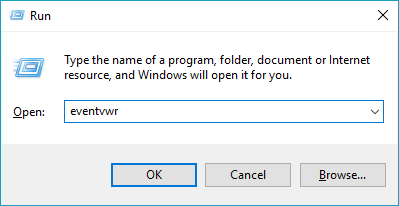
To start the Event Viewer, use the Win+R key combination and execute eventvwr:
This action will open the Event Viewer:
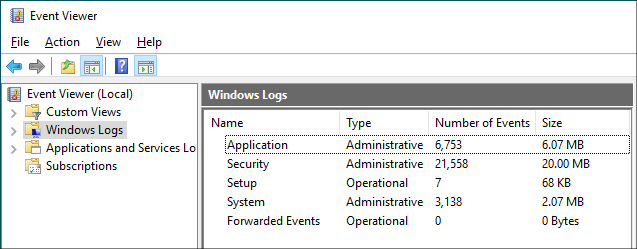
The tree on the left lets you browse through all Event Viewer’s entries.
Windows event log location
Event logs are stored in %SystemRoot%\System32\winevt\Logs, which usually translates into C:\Windows\System32\winevt\Logs. At least, that’s their default location, which can be easily changed by going to Action > Properties in the Event Viewer. The Windows event log location is filled with a lot of *.evtx files, which store events and can be opened with the Event Viewer.
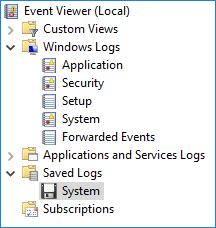
When you open such a log file, for example the locally saved System log, the event viewer will display the log in a separate branch, under Saved Logs.
You can use those files for an easy way to back up your event logs.
Get-WinEvent vs Get-EventLog
If you want to check the logs with PowerShell, you can use two different cmdlets: Get-WinEvent and Get-EventLog. In short, Get-WinEvent is a newer version of Get-EventLog. The cmdlets work in a similar manner, and Get-EventLog does the trick in most cases. According to the Microsoft documentation, the main difference is that Get-WinEvent works with “the Windows event log technology introduced in Windows Vista.” To get a clearer explanation, you can use two simple cmdlets:
Get-EventLog -list
Get-WinEvent -ListLog * | where {$_.RecordCount -gt 0}
As you can see, Get-WinEvent is a clear winner when it comes to the amount of data it can access. While it means that you can access more information, it also means that it might take more effort to filter data.
Mind that some attributes’ names are different in those two cmdlets, so you might need to do some translating if you want to use the syntax of Get-WinEvent with the Get-EventLog cmdlet. If you want to know how to filter the results, simply pipe the cmdlet to Get-Member:
Get-EventLog application -newest 1 | Get-Member
Although Get-EventLog is a “legacy cmdlet,” it still works like a charm in most diagnostic cases. It also has one clear advantage: you can use the -After and –Before attributes to filter results by date. Thanks to that, date-related queries are much quicker than piping all results and trying to sift through them.
Before you start searching through the logs for specific events, it is a good idea to get to know the structure and get the general idea of how the logging mechanism works. The Event Viewer is the right tool to get you started on that.
Use PowerShell to check event logs on multiple computers
The biggest challenge of setting up the Get-EventLog or Get-WinEvent cmdlets is to filter results. First, you have to know what to look for, next – you have to make sure that your query does not cause the PowerShell console to throw a fit. One way to run diagnostics is to use the script below:
$servers = Get-TransportService;

foreach ($server in $servers)

{Write-Host "Scanning the event log of: " -NoNewLine; Write-Host $server;

Get-EventLog system -ComputerName $server -After (Get-Date).AddHours(-12) | where {($_.EntryType -Match "Error") -or ($_.EntryType -Match "Warning")} | ft  -wrap >> "C:/$server.csv";

Get-EventLog application -ComputerName $server -After (Get-Date).AddHours(-12) | where {($_.EntryType -Match "Error") -or ($_.EntryType -Match "Warning")} | ft  -wrap >> "C:/$server.csv"}
The script pulls information about all Error and Warning kinds of events generated in the last 12 hours in System and Application logs for a list of servers. You can replace the Get-TransportService cmdlet with another list of machines you want to diagnose.
Checking login and logoff time with PowerShell
There are quite a few ways to check when a certain machine was turned on. If you simply need to check when was the first time a user logged in on a specific date, use the following cmdlet:
Get-EventLog system -after (get-date).AddDays(-1) | where {$_.InstanceId -eq 7001}
To learn when the computer was turned on a specific date, you can select the first logged event:
$today = get-date -Hour 0 -Minute 0;

Get-EventLog system -after $today | sort -Descending | select -First 1
Those cmdlets; however, will not work if you want to monitor the usage of a shared computer.
You could scan through the security events, looking for 4624 (logon) and 4625 (logoff) event IDs. However, the security log usually holds the greatest number of records and going through it can be extremely time-consuming. Fortunately, the system log also stores logon and logoff data and specifying the exact source of the log entry allows a relatively quick search. The script below returns a list of logon and logoff events on the target computer with their exact times and users for the last seven days.
$logs = get-eventlog system -ComputerName <name of the monitored computer> -source Microsoft-Windows-Winlogon -After (Get-Date).AddDays(-7);

$res = @(); ForEach ($log in $logs) {if($log.instanceid -eq 7001) {$type = "Logon"} Elseif ($log.instanceid -eq 7002){$type="Logoff"} Else {Continue} $res += New-Object PSObject -Property @{Time = $log.TimeWritten; "Event" = $type; User = (New-Object System.Security.Principal.SecurityIdentifier $Log.ReplacementStrings[1]).Translate([System.Security.Principal.NTAccount])}};

$res
Result:
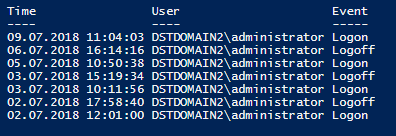
If you need more detailed results, you could add the Security log events IDs 4800 and 4801 for lock and unlock events. Mind that this will require you to run another Get-EventLog script to get info from the Security log. It will also significantly increase the time your PowerShell console will need to finish the task.
Further Reading:
- Managing users’ Outlook rules from Exchange Management Shell (with PowerShell)
- Message tracking logs in Exchange Server