





[Update]: This article was first published on February 19, 2021. It’s been updated to present the current steps required for a proper configuration in Microsoft 365.
Even though you can’t prevent users from sending emails to a no-reply address, you can create a mailbox that automatically blocks all incoming messages.
No-reply email addresses are useful in many scenarios, like sending notifications from transaction systems, shipping progress information, etc. In the case of such messages, you do not expect any user feedback and most of them are generated and sent automatically.
About no-reply email mailboxes
Before you start using a no-reply email address, always consider its applications and consequences of using it. Having user experience in mind, you can consider adding an automatic response to a no-reply mailbox. It’s a good practice to inform your recipients that they sent their message to the wrong address and tell them how to contact you if not by replying to the email they’ve just received.
Just a word of warning – native autoresponder feature has limited functionality:
- Its mail loop prevention mechanism sends only one response per email address. While the mechanism itself is a must to avoid autoreply storm, the second time a person writes to a no-reply mailbox, they will most probably have forgotten about the automatic response they received a week ago.
- The “reject the message and include an explanation” action creates a generic NDR with an explanation which is easily overlooked.
- There is no way to apply branding to those messages.
If you want to avoid those limitations and get a chance to manage email signatures across your company, try CodeTwo Autoresponder for Microsoft 365.
If your use case requires no responses at all, instead of going through all the trouble of setting a no-reply mailbox, you can use a non-existent email address as a reply-to address. Just remember, no-reply mailboxes can cause you to lose valuable leads and leave your customers completely unsupported. That’s why, at least in some cases, it may be better to use a mailbox that someone in your organization actually opens and reads through. At least from time to time.
Creating a no-reply address using a shared mailbox
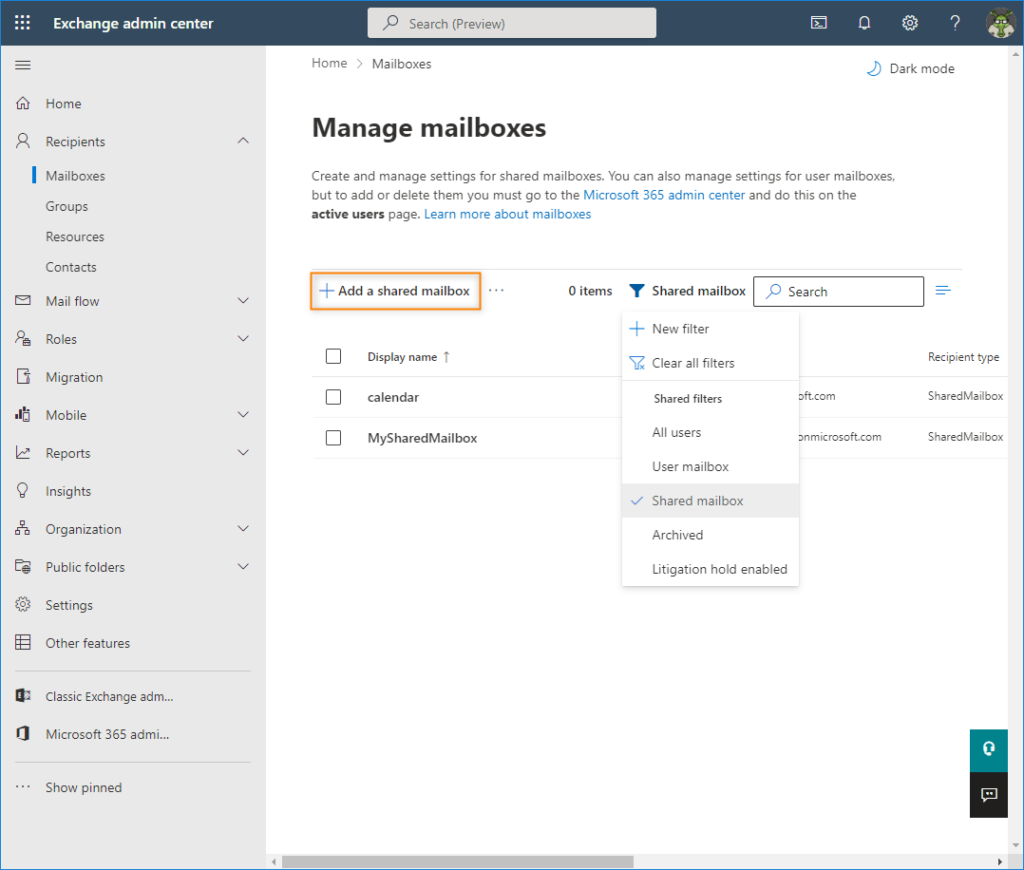
You can create a no-reply address by using a shared mailbox in Microsoft 365, since this kind of mailbox does not need a license. Given its use, you probably do not want to assign a license to a no-reply mailbox. To create a shared mailbox, open the Exchange admin center. Go to Recipients > Mailboxes and click the Add a shared mailbox button. Optionally, you can use filters to display shared mailboxes already created in your organization.
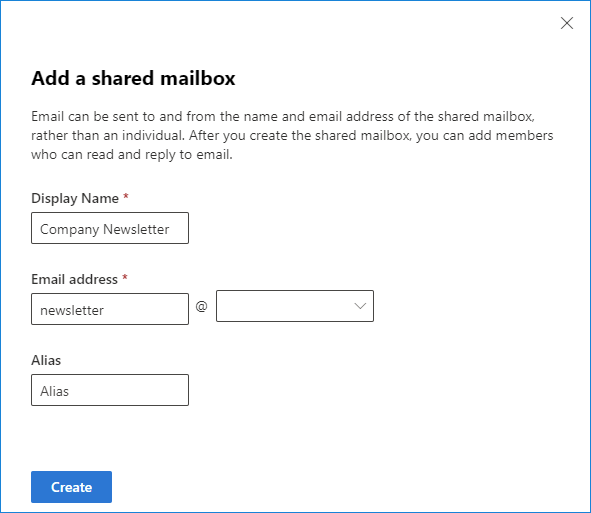
Assign an email address and display name according to the mailbox’s function. Although using an address like no-reply@example.com is incredibly popular, it may be bad for the user experience. An address like that can suggest that you do not want to hear from your recipients. So, it might be better to think of something more friendly like hello@example.com or strictly functional and appropriate to what the address will be used for e.g. newsletter@example.com. In this example, I’ll go with the newsletter theme, so I’ll also use the Company Newsletter display name. You can also choose the appropriate domain (if you have more than one) and alias. If I leave the Alias field empty, its value will be identical to whatever I wrote in the email address field. Click Create to apply changes.
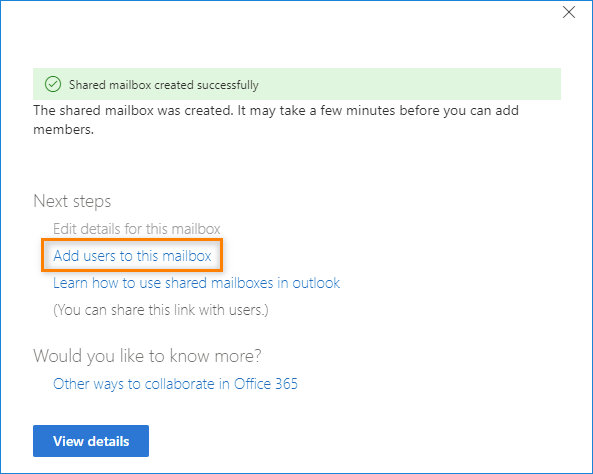
With this done, you can immediately use the Add users to this mailbox option. It will let you use the search field or the user list in the pane that opens to select users who will become members of this mailbox (by default this user will have Full Access and Send As permissions to this mailbox). This is useful for sending emails using the no-reply address or if you would like to set up an automatic reply using Outlook.
When you have created your shared mailbox, I recommend taking one of the two approaches. You can choose to block all emails or create a no-reply mailbox that will delete all the received messages and send an autoreply if someone writes to it.
Blocking all incoming emails
In the first scenario, I will use the shared mailbox to create a no-reply address that does not require monitoring. You can either set it up so that emails are purged without letting anyone know or send out an NDR.
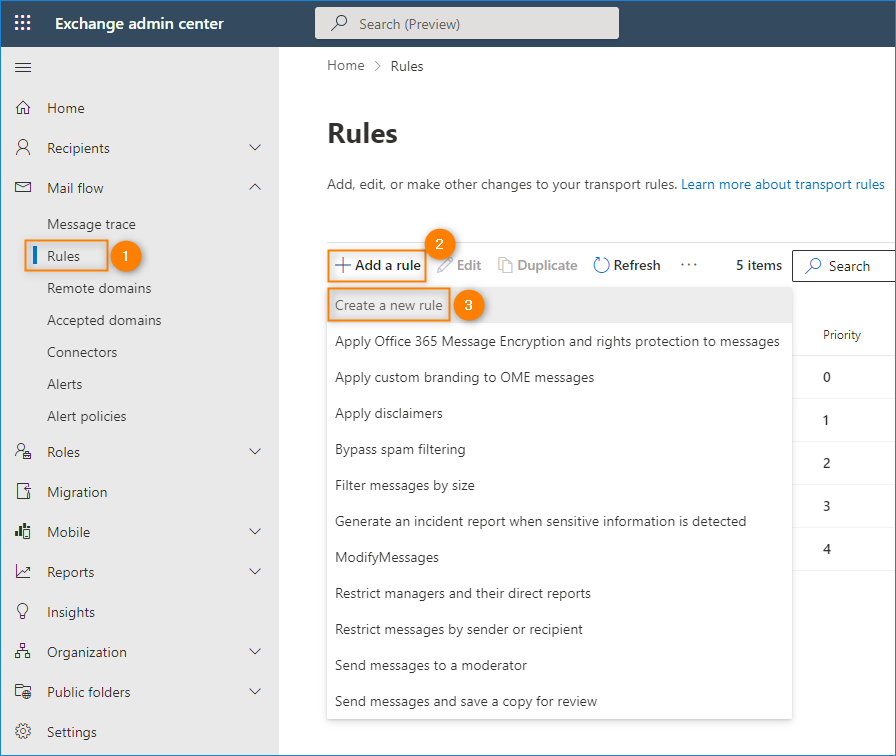
To create a rule that blocks incoming emails, open the Exchange admin center. Go to Mail flow > Rules. Click Add a rule and select Create a new rule from the drop-down list.
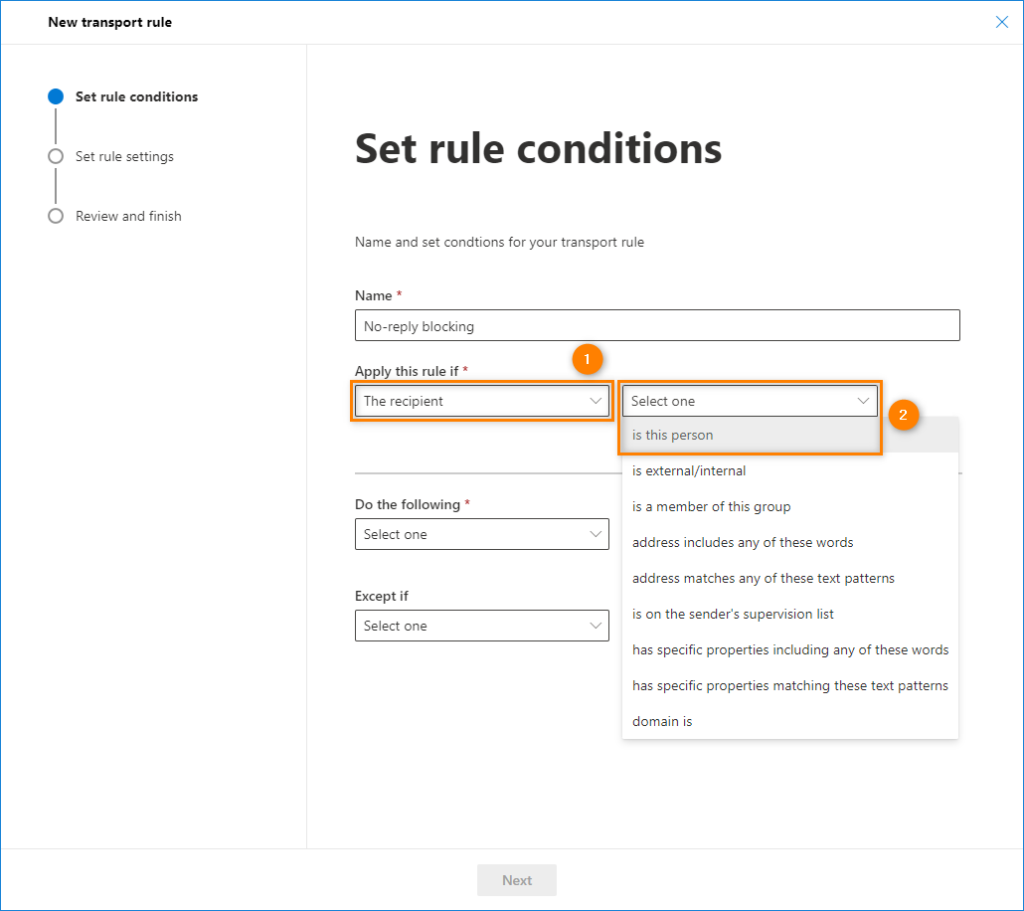
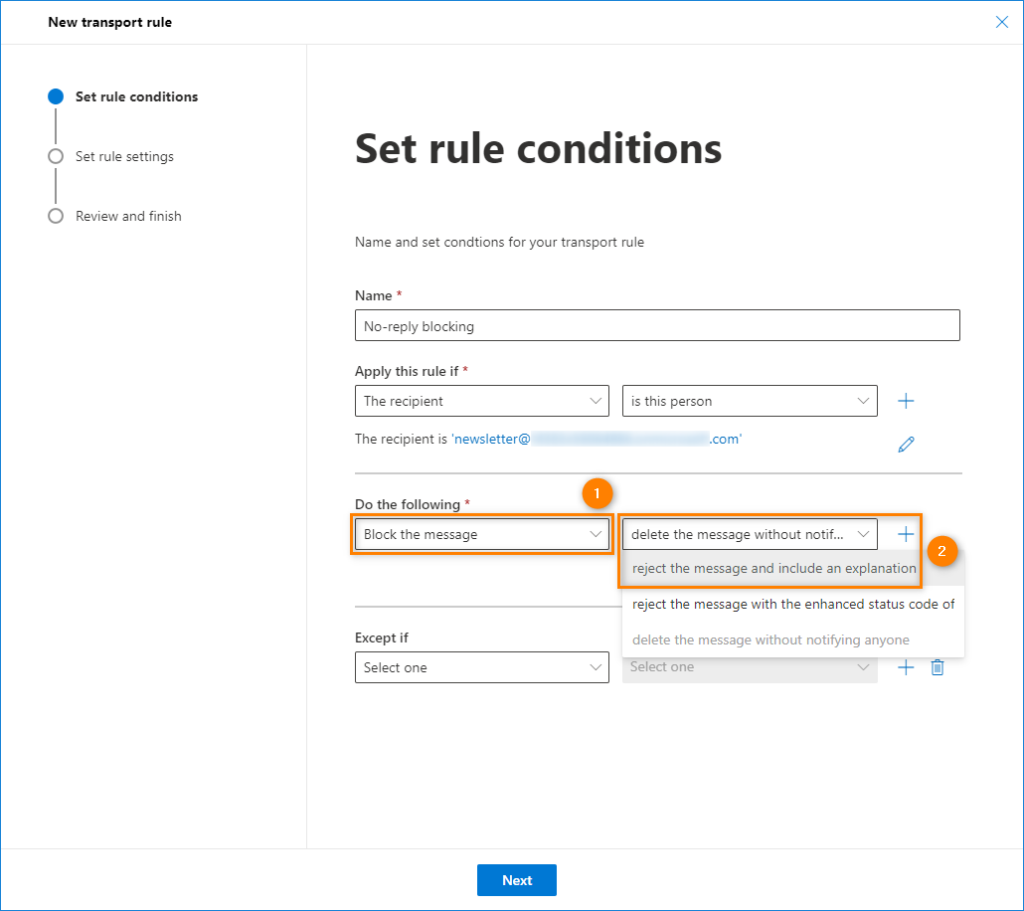
In the Set rule conditions step, name the new rule e.g. No-reply blocking. In the Apply this rule if section, select The recipient > is this person.
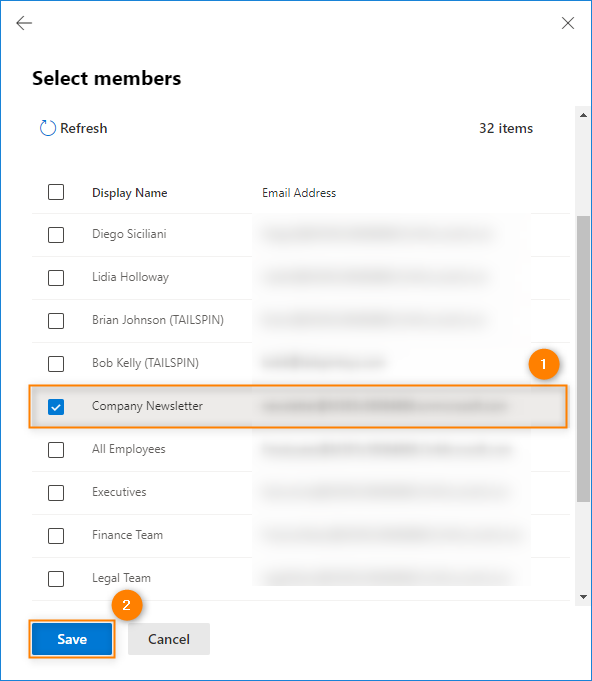
In the pane that opens, select the previously created shared mailbox from the list (in my case this will be Company Newsletter – newsletter@example.com) and confirm by clicking Save.
If you want to delete the incoming emails without a trace, in the Do the following section, select Block the message > delete the message without notifying anyone.
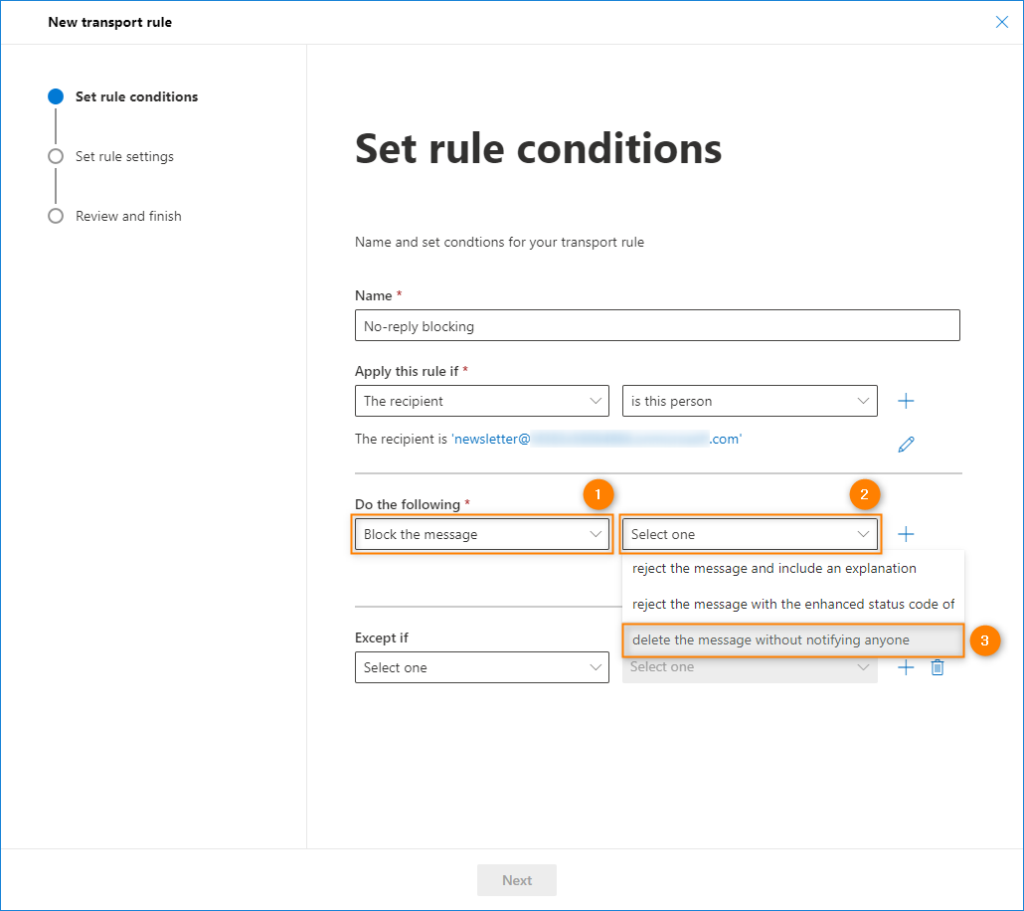
If you want to inform the sender that their email never reached you, use the reject the message and include an explanation option. You will be able to add a short note, for example: This is a no-reply mailbox. Go to www.example.com/contact to see how to reach us.
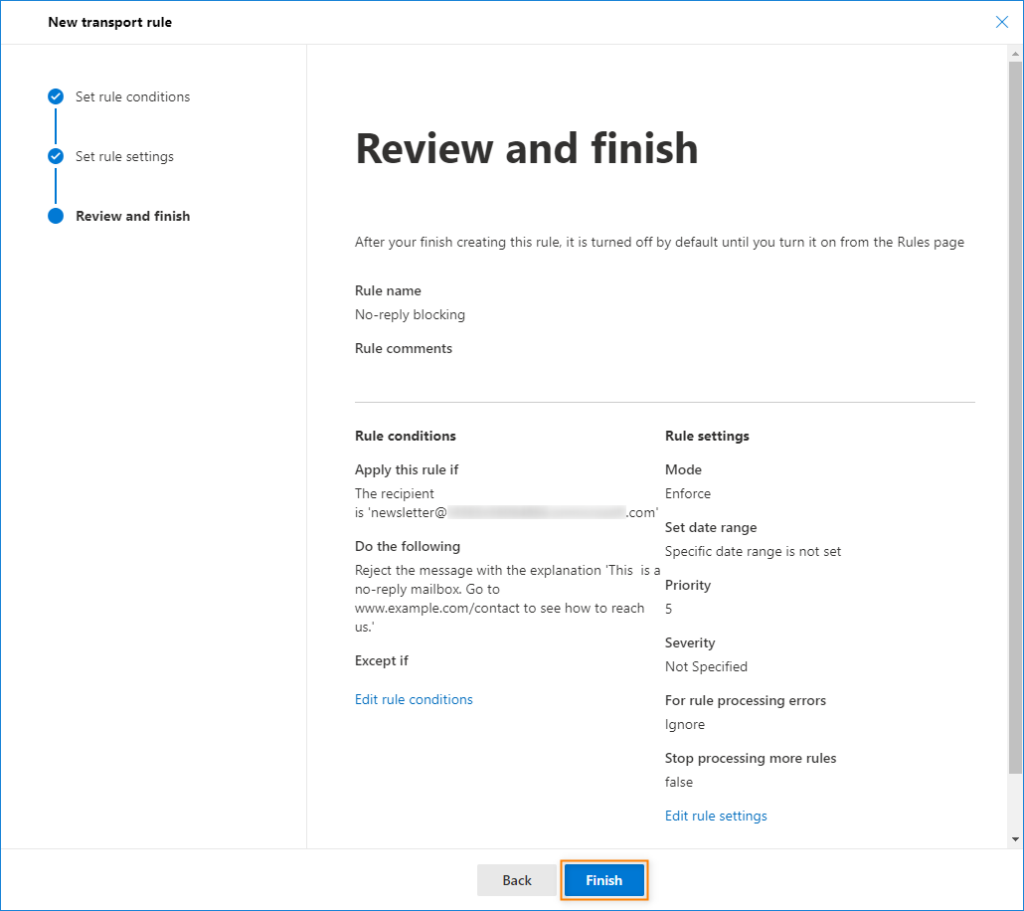
Click Next to go to the Set rule settings step. Here, you can leave the default settings and proceed to the Review and finish step by clicking Next once again. Once you are certain that the setup is correct, click Finish to create the mail flow rule.
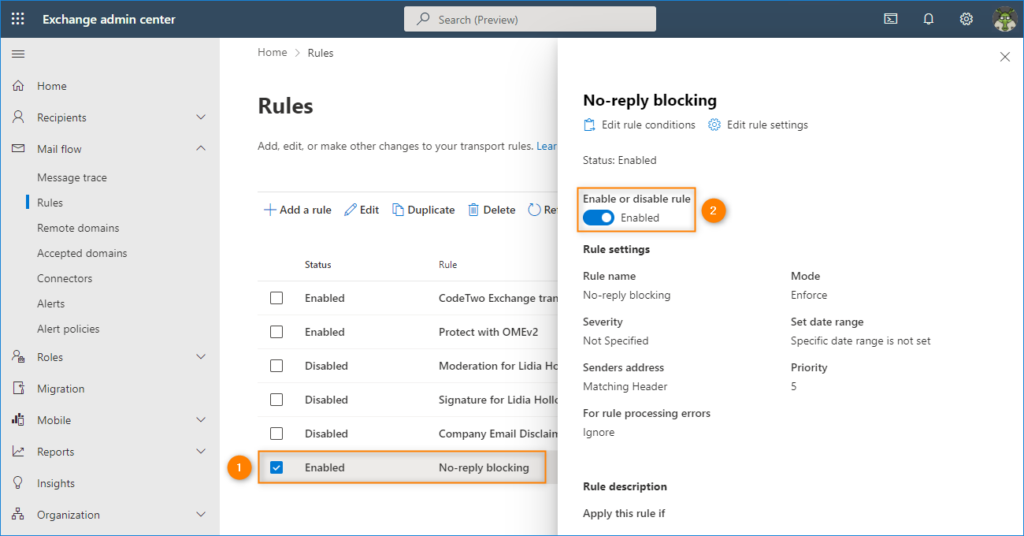
Once created, the mail flow rule is disabled by default. Select it from the rules list and use the toggle to enable the rule.
When this is done, any email sent to newsletter@example.com will be deleted before it reaches the inbox. As a result, you do not have to assign an employee to monitor this address. If someone decides to send an email to this address anyway, they will never receive a reply from you (obviously), but they might receive a non-delivery report, depending on which option you chose.
Although you can add an explanation to the NDR, many users will not see it. Non-delivery reports aren’t built for end-user’s convenience – the message that you can customize is neither well visible nor appealing. If you would like to remedy this, you can take another approach.
Setting up a no-reply address with an automatic reply
In the second scenario, instead of deleting all incoming emails immediately as in the example above, I’ll configure a retention policy that will remove any emails from the inbox of your no-reply mailbox after a specified time period that can be as short as 1 day. If you prefer, you can set up a longer email retention period so you (or another employee) will have the opportunity to look through the incoming mail. Additionally, let’s set up an automatic reply that will notify any potential sender that this mailbox is not monitored regularly.
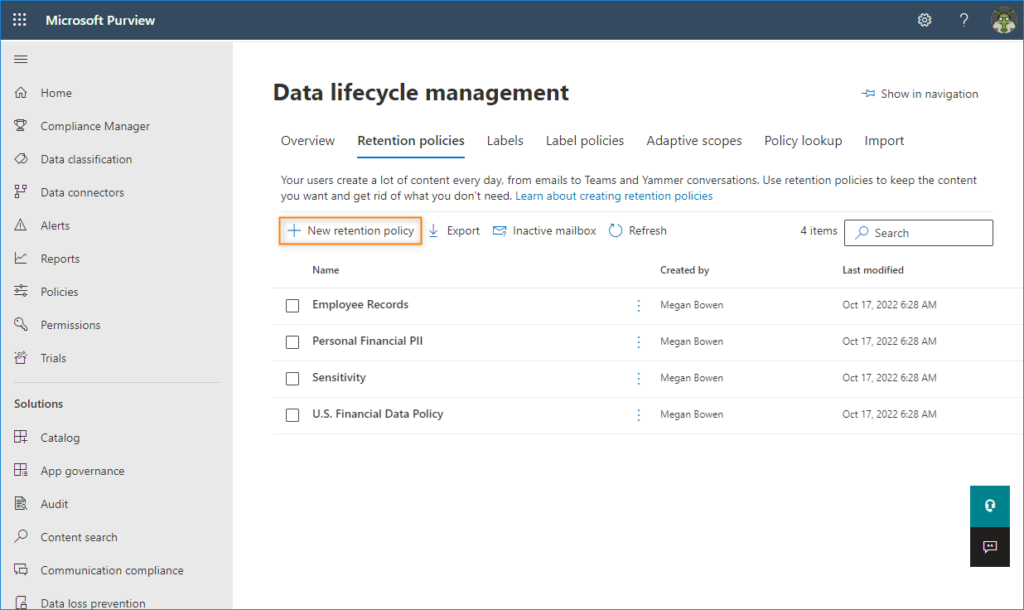
Begin by opening the Microsoft Purview compliance portal. Go to Policies > Retention and click New retention policy.
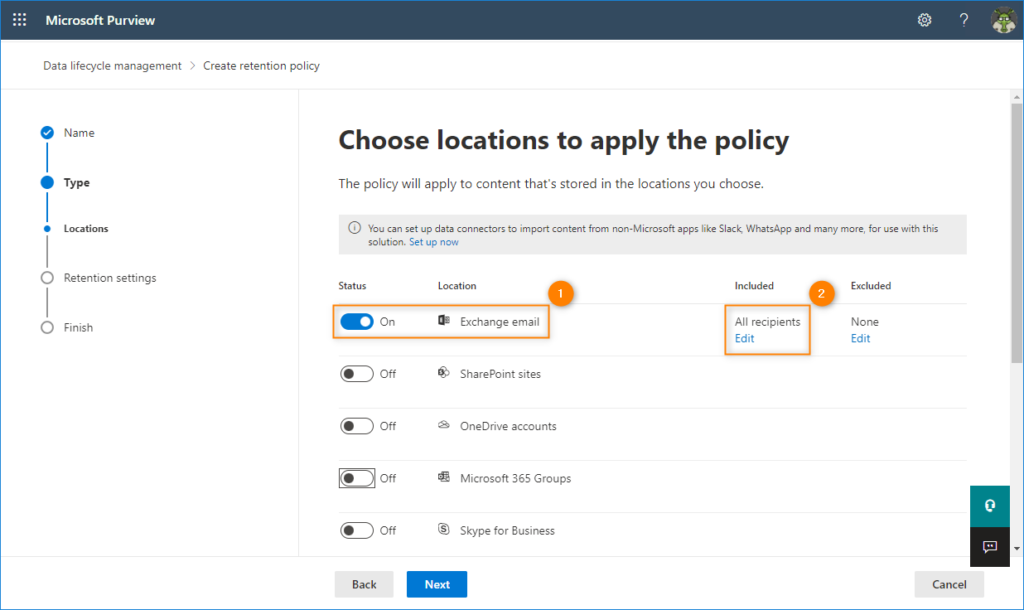
The policy creation wizard starts. Name your retention policy, e.g. No-reply mailboxes and click Next to proceed to the Type step. Here, choose the Static type of retention policy. Confirm by clicking Next. In the Locations step, set the toggle next to Exchange email to On. Then, click Edit in the Included column.
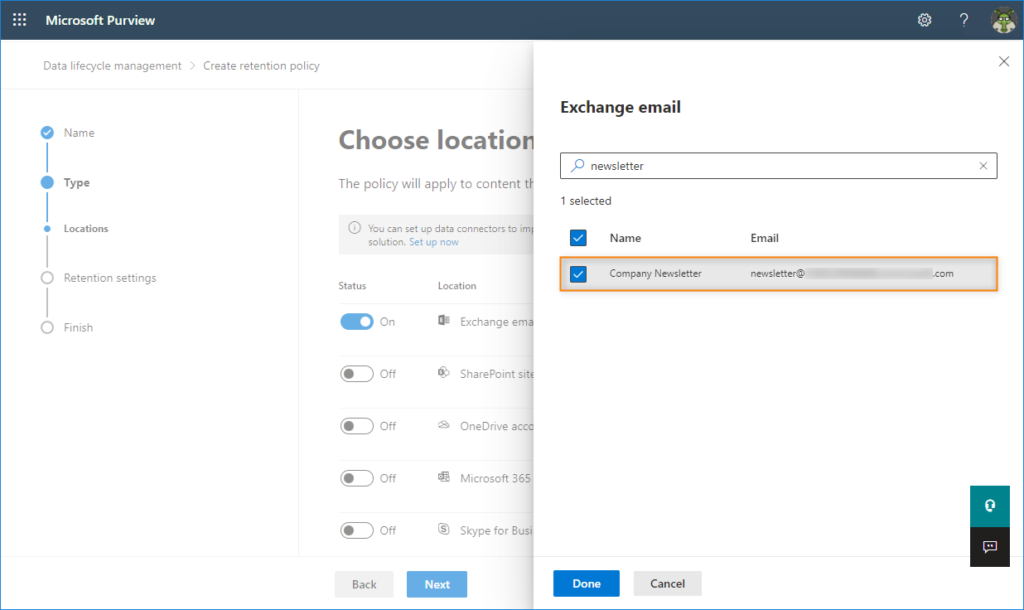
Use the search field or the mailbox list to find and select your no-reply mailbox. Confirm by clicking Done.
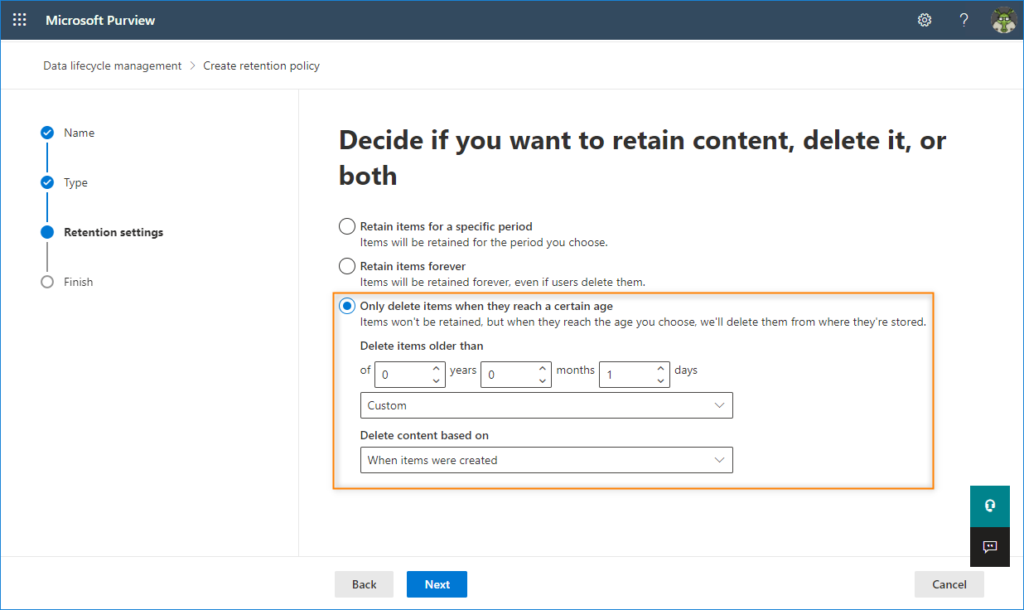
Click Next to go to Retention settings. Select Only delete items when they reach a certain age. In the Delete items older than drop-down list select Custom and use the fields provided to delete items older than 1 day. Then, in the Delete content based on drop-down menu select When items were created.
When you click Next, you will go to the summary page. Click Submit to create the new policy. Note that it may take some time before it comes into force.
Configure an automatic reply
With the retention policy in place, I can now set up an automatic reply for the no-reply mailbox. There are a number of methods to do this, but in general the setup is identical to creating an out of office message. This article explains in detail how to set up automatic responses in Microsoft 365 via the admin center or PowerShell. Below, you can find a short instruction on how to do it using the Microsoft 365 admin center.
Open the Microsoft 365 admin center and go to Teams & groups > Shared mailboxes. Then, select your no-reply mailbox by clicking it. In the new pane that opens, click Edit in the Automatic replies section.
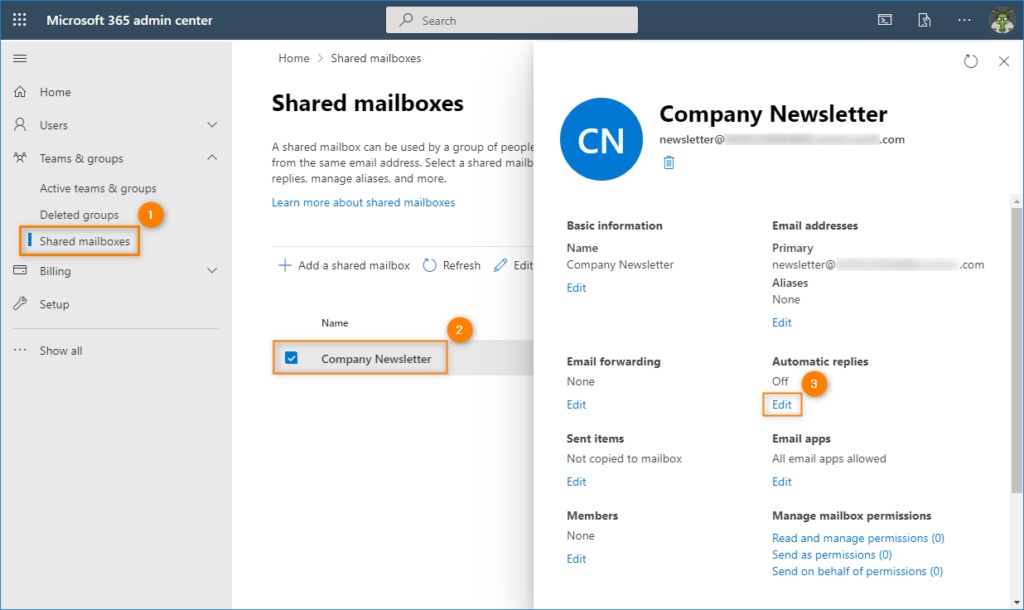
In the Manage automatic replies pane select the Send automatic replies to senders inside this organization and Send automatic replies to senders outside this organization checkboxes. Also, select the Send replies to all external senders option. Enter your automatic reply text in the fields provided and click Save to confirm.
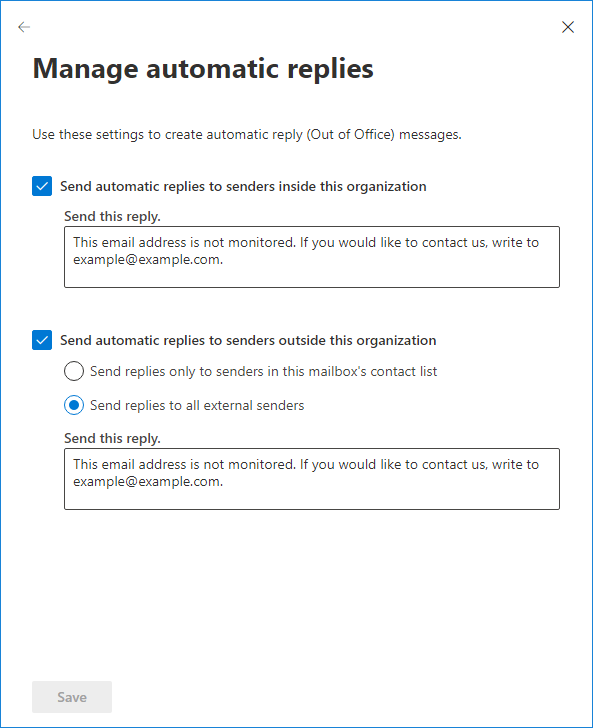
Once again, have the user experience in mind when creating an automatic response. In most cases, a short reply like This email address is not monitored. If you would like to contact us, please write to example@example.com should work.
However, you may also want to provide some additional information depending on the context of the message to which the user is trying to respond, e.g. if it was a newsletter, you may direct users to contact the sales department or visit the product page, etc.
Read more
- Manage Outlook rules in Microsoft 365
- Message tracking in Microsoft 365
- cloud.microsoft – see the impact of introducing Microsoft’s top-level domain