





[Update]: This article was first published on September 4, 2019. It’s been updated to present the current steps required for a proper configuration in the Exchange admin center.
There might be situations when it’s necessary to block the mail flow outside an organization for specific users or user groups. Let’s find out how you can use Exchange Online mail flow rules to prevent Office 365 users from sending emails to external recipients.
Block emails sent outside your
Office 365 organization
To restrict all (or specific) users to sending only internal emails and block their emails when they’re sent to external recipients, follow the steps below:
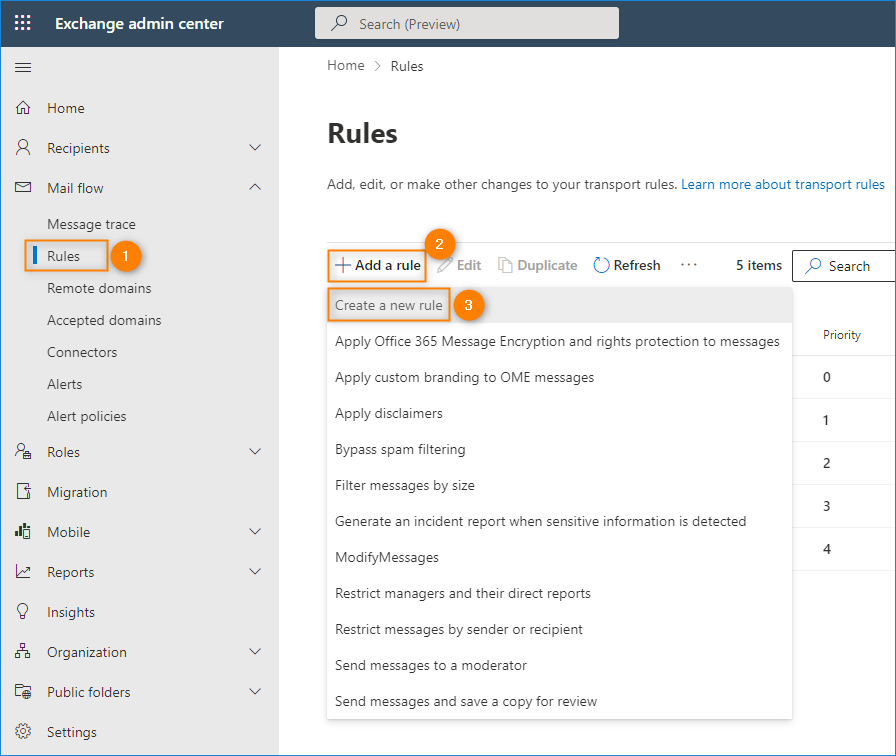
- Sign in to the Exchange admin center. Go to Mail flow > Rules. Click Add a rule and select Create a new rule from the drop-down list.
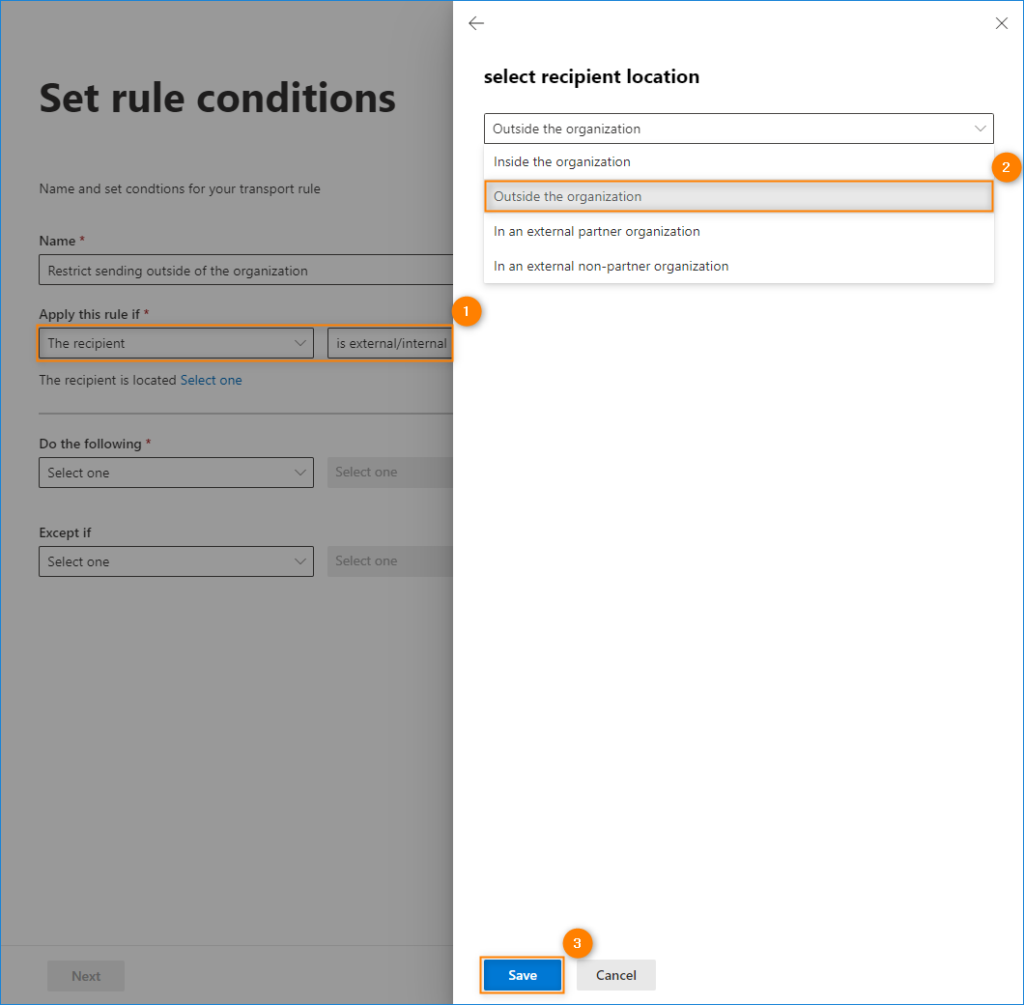
- In the new rule creation wizard, under the Apply this rule if section, select The recipient > is external/internal. In the pane that opens, choose Outside the organization from the drop-down list and confirm by clicking Save.
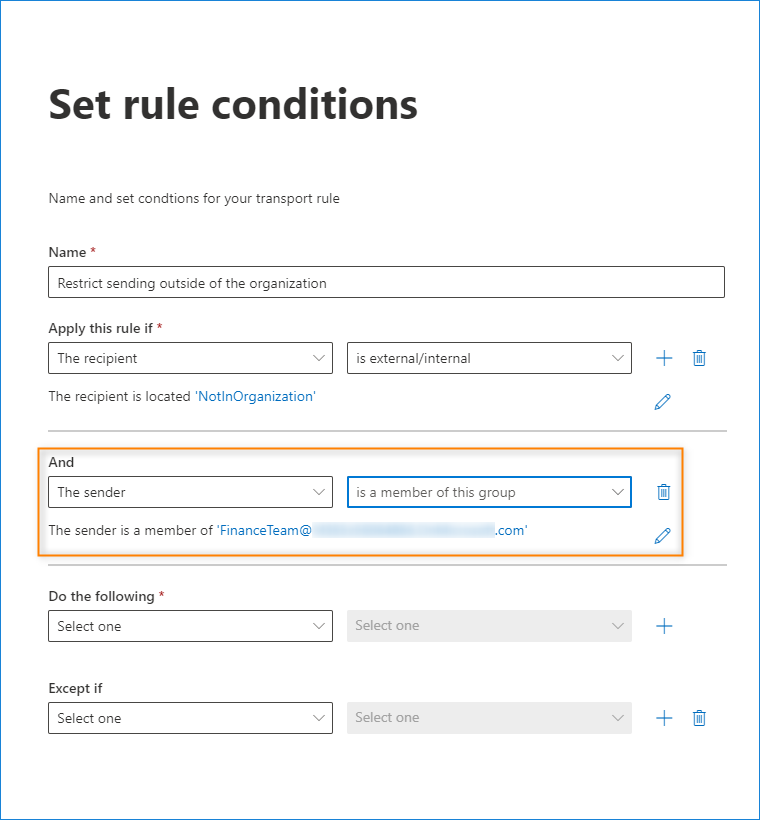
- If you don’t want the rule to apply to all users, you can add another condition that narrows down its scope. To do so, click the + button next to the first condition. You can, for example, add a specific group so that only its members won’t be allowed to send emails outside the organization.
- In the Do the following section, select Block the message > reject the message and include an explanation.
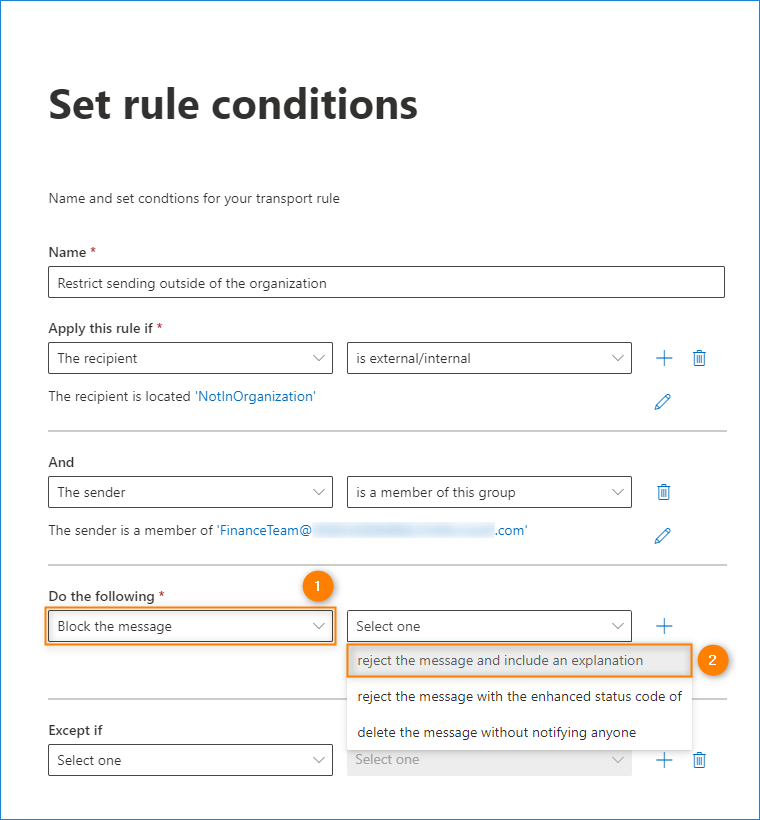
- Provide a short explanation that says why the email is blocked. Users will get this explanation along with an NDR message after trying to send an email outside the organization. You can also choose not to notify anyone and simply delete the message (by selecting the delete the message without notifying anyone option).
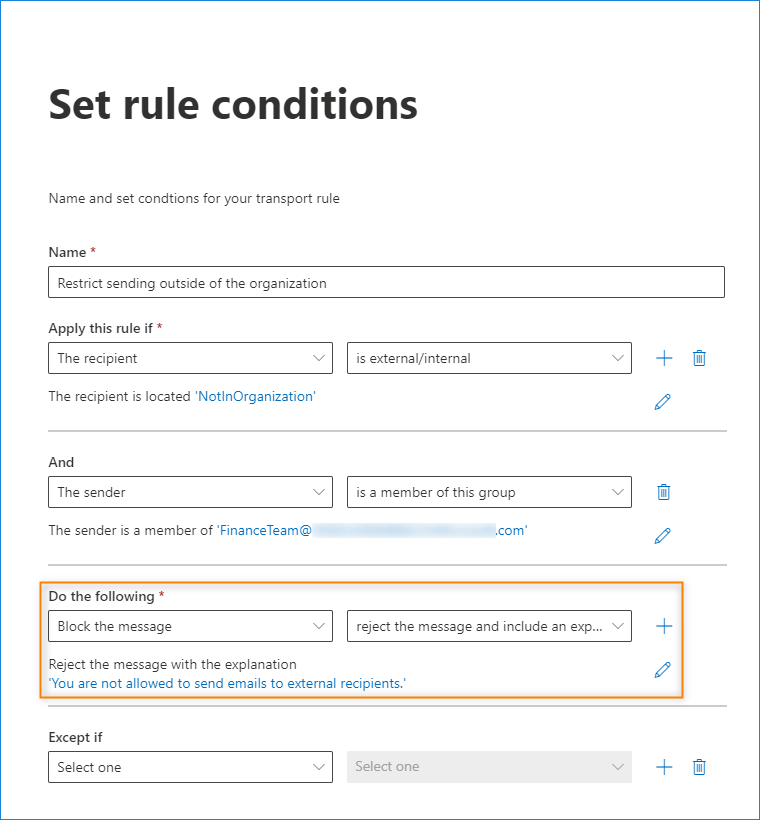
- Complete the remaining steps of the rule creation wizard, save the changes by clicking Finish.
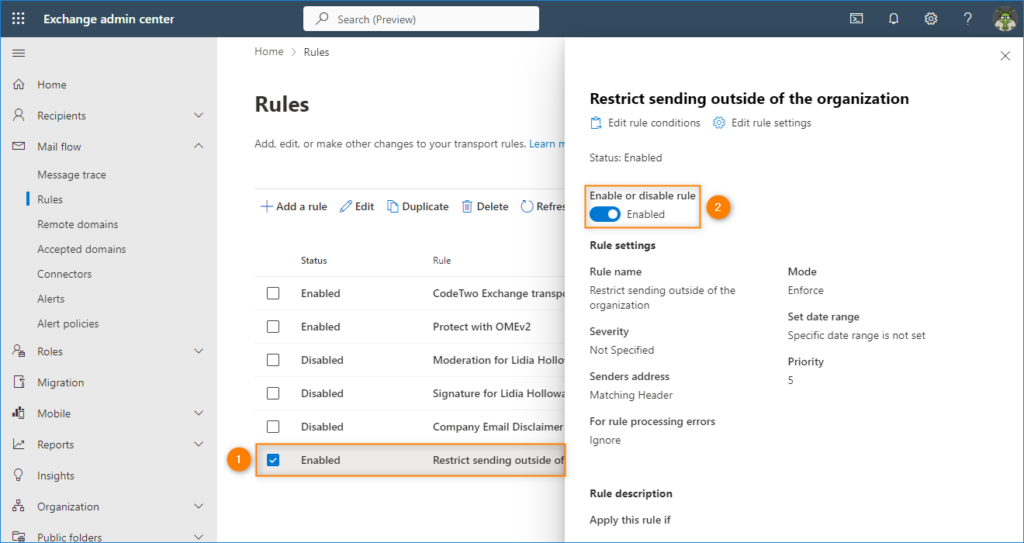
- Once created, the mail flow rule is disabled by default. Select it from the rules list and use the toggle to enable the rule.
- Test whether everything works as expected. Note that it may take up to 30 minutes before the changes to the rule take effect.
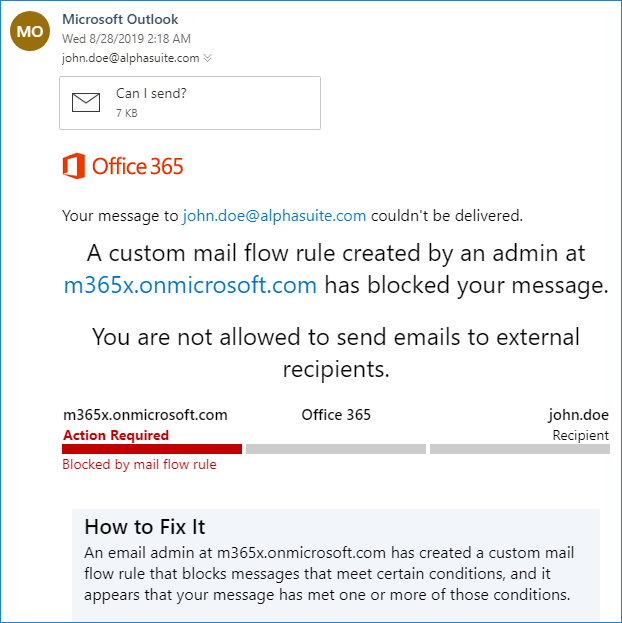
That’s it. Now, if the users included in this rule try to send emails outside the Office 365 organization, these messages will be rejected, and the senders will get the notification that their email was blocked.
What about on-premises environments?
If you’re still on an on-premises infrastructure and you’re looking for a similar solution that works with Exchange Server, try CodeTwo Exchange Rules Pro. This program works in on-premises and hybrid environments and offers a wide range of email rule configuration settings that are not available natively in Exchange.
See also:
- MailTips in Office 365
- Managing users’ Outlook rules from Exchange Management Shell (with PowerShell)
- How to manage Office 365 signatures behind IT’s back?