





Step-by-step instructions on how to block users’ ability to change their M365 profile photos.

By default, any user can change their photo to anything they like. This might be a problem for admins who want to keep everything in order. In this article, I’ll show you why and how to block users from changing their photos in Microsoft 365.
Why to prevent users from
changing photos in Microsoft 365?
When a user sets up their user photo in Microsoft 365 (Office 365), those images propagate through the whole Microsoft 365 tenant and apps integrated with Entra ID (Azure AD). This means that they are displayed in Outlook, Teams, SharePoint, and more.
The most important reason to lock the ability of users to change their profile photos is to ensure a unified visual identity. If you don’t restrict permissions, any user can overwrite the photo that you (the admin) set up for them in Microsoft 365 to comply with your organization’s guidelines. When users control their profile pictures, it’s impossible to maintain the same quality across the whole organization. That’s why setting restrictions on user profile photo management in Microsoft 365 is crucial for many companies.
Where can users change
their profile photo?
Users can change their profile photo by clicking their avatar in the top right corner of any Microsoft 365 app:
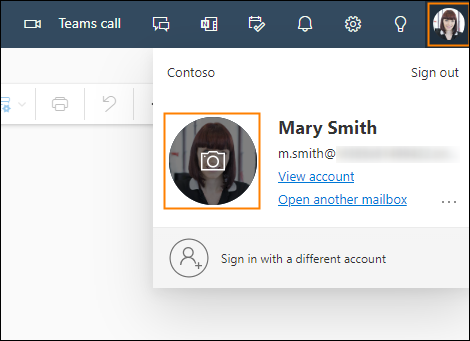
Additionally, a profile photo can be changed by navigating to the following URL: https://outlook.office.com/mail/changephoto. In the past, the URL used to be a “backdoor” for users to change their photos despite policies. Now, the correct mailbox policy blocks this as well. You could change the photo in Delve as well, but starting from December 16, 2024, Delve is retired.
Note that regardless of the method you choose, it can take up to 48 hours for the photo to propagate across Microsoft 365 apps & services. Learn more
How to block users from
changing their photos in Microsoft 365
To successfully prevent users from changing their own profile photos, you need to change your Outlook on the web policy. To do so, you’ll need to use PowerShell.
First, you need to start a remote PowerShell session to your Microsoft 365 (Exchange Online). See instructions in this article.
If you want to prevent all users from changing their profile photos, you need to change the default OWA (Outlook on the web) policy. The default policy’s name is OwaMailboxPolicy-Default. While its name can be changed, the default policy gets recreated with the default name and will be applied to newly created users. Since you can have other policies that apply to a subset of users only, let’s first check what policies you have by running:
Get-OwaMailboxPolicy | FL name,SetPhotoEnabled

The results
suggest that I only have the default Outlook on the web mailbox policy, and it
allows users to change their profile photos.
To prevent
all users from changing their pictures, I can run:
Set-OwaMailboxPolicy OwaMailboxPolicy-Default -SetPhotoEnabled $false
And that’s it. Within up to 60 minutes, all users who try to change their profile photo will fail to do so.
If you want to prevent only a subset of users from changing their photos, you need to create a new mailbox policy, change its SetPhotoEnabled attribute and assign it to the subset of users. See instructions below.
Note: You can create a new Outlook on the web policy in the Exchange admin center (EAC) and assign it to users. However, currently, you cannot change the SetPhotoEnabled parameter using this interface, so I’ll show the whole procedure using PowerShell only.
First,
create a new Outlook on the web policy with the SetPhotoEnabled
attribute set to $false:
New-OwaMailboxPolicy "Prevent users from changing their photos" | Set-OwaMailboxPolicy -SetPhotoEnabled $false
To apply the policy for a single user (m.smith in the example below), run the following cmdlet:
Set-CASMailbox -Identity m.smith@example.com -OwaMailboxPolicy “Prevent users from changing their photos”
To apply the OWA mailbox policy to more users, it’s easiest to use the Foreach loop. In the example below, I use PowerShell to get all members of the Microsoft 365 group called “Marketing” and apply the new policy to them:
$members=Get-UnifiedGroupLinks "Marketing" -LinkType members;
Foreach ($member in $members) {Set-CASMailbox -Identity $member.guid -OwaMailboxPolicy "Prevent users from changing their photos"}
Once you apply the change, you can use the following cmdlet to check if the right OWA mailbox policy has been applied to users:
Get-CASMailbox | FL name,OwaMailboxPolicy
This concludes modifying the Outlook on the web mailbox policy to prevent users from changing profile photos. It should work for all the above mentioned places in Microsoft 365 where you can change a profile photo.
Now, when a user tries to change their profile photo, they will see a relevant message without being able to edit their photo in any way.
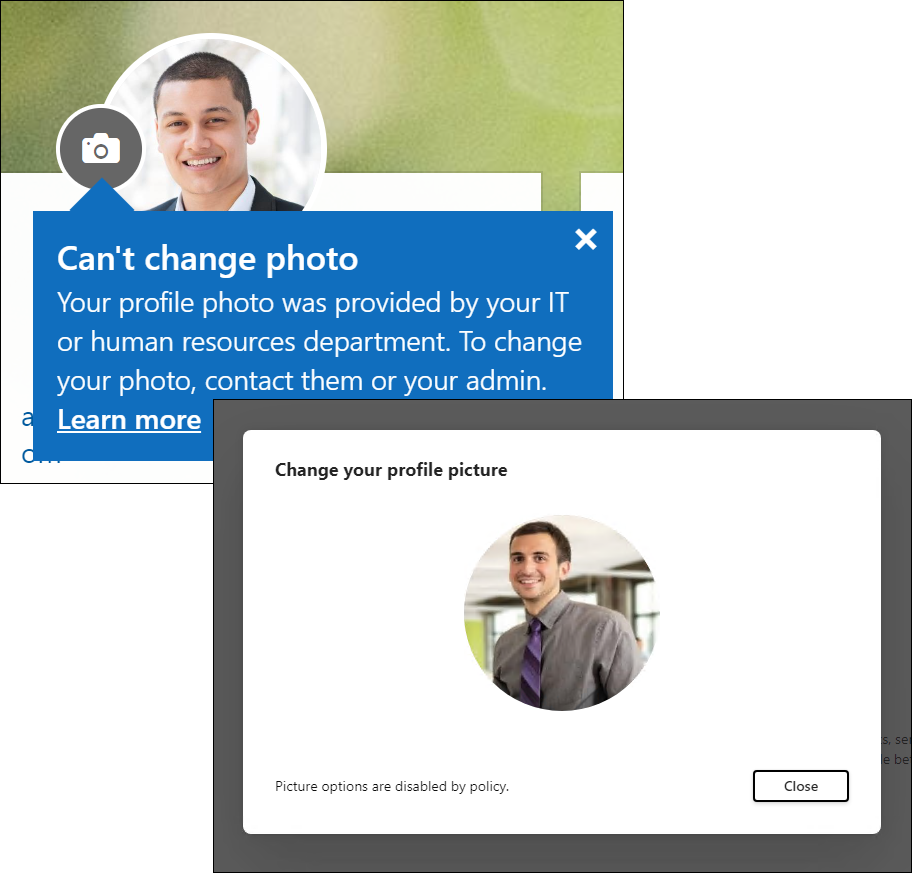
Since users can no longer edit their picture attribute, you can manage user photos without worrying that someone will overwrite them.
How to manage user photos
in Microsoft 365
CodeTwo User Photos is a free tool that allows you to centrally manage profile photos in Microsoft 365 for all users. If you’re an admin, you can use this app after preventing users from changing their profile images. It will help you easily upload user photos to Microsoft 365, so that they will appear in SharePoint, Exchange Online, Outlook on the web, Microsoft Teams and any other Microsoft 365-connected app and service.
What’s more, the tool will let you automatically rotate and resize images, so that they always meet Microsoft 365 photo requirements. It’s especially useful since the old Set-UserPhoto cmdlet has been discontinued.
Download it here for free
See more:
- How to add user profile photos to email signatures
- How to add user photos to Office 365 without PowerShell
- How to prevent Office 365 users from sending emails outside the organization?