





[Update]: This blog post was last updated on April 22, 2024. Search-Mailbox seems to be gone for good and the new method’s limit is upgraded from 10 to 100 items.
Microsoft retired the Search-Mailbox cmdlet – now what? Discover how to use New-ComplianceSearch, its key advantages and how to make the switch seamlessly.

Search-Mailbox end of life
Microsoft officially retired the Search-Mailbox cmdlet together with legacy eDiscovery tools on July 1, 2020, after initially planning to phase it out in April of that year. While it remained functional for some time, by 2023, it was no longer officially supported – yet still worked in some environments. Now, it’s completely gone from Exchange Online and Microsoft 365, with no trace of it in any tenant I’ve checked, even after running Connect-ExchangeOnline. If you’re still using on-premises Exchange, you may still access the old cmdlet. But for cloud environments, switching to New-ComplianceSearch is no longer an option – it’s a necessity.
The new cmdlet works differently and can be trickier to use, so let’s break down what’s changed and how to search mailboxes effectively with the new method.
Comparison between ComplianceSearch and Search-Mailbox
The Search-Mailbox
cmdlet could be used to:
- restore deleted items (invisible from the users’ perspective),
- copy certain elements to a discovery mailbox,
- delete or purge mailbox content,
- estimate results for a chosen query.
These
capabilities, together with the highly customizable -SearchQuery attribute,
made this single cmdlet extremely useful. Don’t get me wrong, using this cmdlet
was not all roses:
- You needed to work around the 10.000 results limit.
- KQL used in the SearchQuery could be a bit clunky, especially when you included
multiple conditions. But, to be honest, the -ContentMatchQuery attribute in the new search experience uses KQL as well. - There was no way to restore deleted elements to the same mailbox – the target mailbox needed to be different from the searched mailbox.
Now, with the *-ComplianceSearch family of cmdlets, you can get similar results, but the way you do it is a bit like switching from the Message Tracking logs to Office 365 Message Trace. The basic differences are:
- Search-Mailbox required the Mailbox Search role to perform searches or the Mailbox Import Export role to delete items. *-ComplianceSearch cmdlets require one of those roles AND a security & compliance related role.
- With Search-Mailbox, you could use a single cmdlet to search and delete some mailbox content while ComplianceSearch requires a few steps.
- Search-Mailbox (as the name suggests) handled only mailbox-related content. ComplianceSearch is based on Unified Search, so it can also run through SharePoint sites and Public Folders.
- When it comes to ComplianceSearch cmdlets, starting a remote PowerShell session to Exchange Online will not suffice. You need to connect to the Security & Compliance module as well.
- Each New-ComplianceSearch you perform can be viewed in the Microsoft Purview compliance portal.
- New-ComplianceSearchAction is not intended for a mass cleanup of mailboxes, as it only deletes 100 items per mailbox at a time. If you think that the limit is ridiculous compared to the 10k in Search-Mailbox, then consider this: the New-ComplianceSearchAction limit was 10 items at first.
Prepare to use Compliance Search
Two prerequisites required before performing any Compliance Search-related actions is connecting to the right Office 365 services. You can do it in a single PowerShell session using the following cmdlets:
Connect-ExchangeOnline;
Connect-IPPSSession -UserPrincipalName <your UPN>
You will get prompted for your Office 365 administrator credentials. After that, the console will attempt to perform remote connections to Exchange Online and Security & Compliance PowerShell. The right modules, together with the accessible cmdlets, will be automatically installed and imported.
Read more about prerequisites and troubleshooting for the modern method of connecting to Exchange Online
Next, you
need to make sure you have the right permissions. Run the cmdlet below to find
out who has access to the Mailbox Search role:
Get-ManagementRoleAssignment -Role "Mailbox Search" -GetEffectiveUsers -Delegating $false
The easiest
way to assign this role is to add yourself to a group which includes this role,
for example:
Add-RoleGroupMember "Discovery Management" -member me@example.com
Mind that
the Mailbox Search role allows to create searches, but only the Mailbox
Import Export role gives admins the right to delete or export the search
results.
The next step
is to check eDiscovery Admins:
Get-eDiscoveryCaseAdmin
And add
yourself to this group, if necessary:
Add-eDiscoveryCaseAdmin me@example.com
How to run a ComplianceSearch cmdlet?
As soon as you are connected and you have the right permissions assigned, you can start a search. First, you need to configure a search with the New-ComplianceSearch cmdlet. For example, you can search through all mailboxes, looking for a certain keyword in the message subject:
New-ComplianceSearch -name "suspicious emails" -ExchangeLocation all -ContentMatchQuery 'subject:"suspicious"'
In -ContentMatchQuery, you can use AND and OR logical operators if you need to work on the search scope some more. To base your search on a date the items were received, this short script below will, for example, return items two days old and newer:
$date= (get-date).adddays(-2);
$date = $date.ToShortDateString();
$date = [scriptblock]::create($date);
New-ComplianceSearch "mailbox items newer than 2 days"
-ExchangeLocation all -ContentMatchQuery "received>=$date"
And you can specify the date manually, as well. The safe format to use is YYYY-MM-DD
The -ContentMatchQuery attribute works the same as the -SearchQuery attribute in Search-Mailbox. See a detailed guide on how to use the SearchQuery.
If you want to search through inactive mailboxes, you need an additional attribute: -AllowNotFoundExchangeLocationsEnabled $true. Additionally, if you point your search to a single inactive mailbox, its UPN must be prepended with a period(.), like below:
New-ComplianceSearch "Search inactive mailbox" -ExchangeLocation .samplemailbox@example.com -AllowNotFoundExchangeLocationsEnabled $true
After you
set up conditions for the search, you need to run a separate cmdlet to start
it:
Start-ComplianceSearch "suspicious emails" /*or any other name that you specified. Run Get-ComplianceSearch to remind yourself what names you've used before.*/
You can also pipeline the New-ComplianceSearch cmdlet to Start-ComplianceSearch, like that:
New-ComplianceSearch … | Start-ComplianceSearch
To check
the progress of your search and get some basic info about the current results,
run the following cmdlet:
Get-ComplianceSearch | FL name,items,size,jobprogress,status
The funny thing you might experience right now is a set of surprising results:
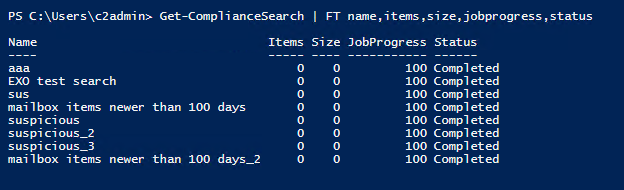
Based on those results, I’d assume that all jobs were completed successfully, but no items were found. As you might suspect, the number of test searches you can see above stems from my attempt to find out what I did wrong.
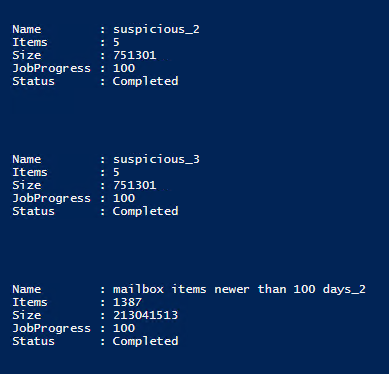
As it turns out, it’s not me. Get-ComplianceSearch just isn’t completely honest. What’s surprising, when you run the cmdlet for a single Compliance Search case, it does return the correct values. So, to list all your Searches and actually learn something about them, run the following code:
$searches = Get-ComplianceSearch; foreach ($search in $searches){Get-ComplianceSearch $search.name | FL Name,Items,Size,JobProgress,Status}
What happens if you re-run a compliance search?
You can restart any search that has already been finished. That’s good news – it means you can rerun searches with the most common queries. Or use the Set-ComplianceSearch cmdlet to change search criteria and Start-ComplianceSearch immediately afterwards. Remember that SoftDeleted items will be returned in the results again.
How to delete mailbox contents in Office 365 using PowerShell
After you’ve
set up and finished the ComplianceSearch, you need to use New-ComplianceSearchAction
with the -Purge attribute to delete items, for example:
New-ComplianceSearchAction -SearchName "suspicious emails" -purge -purgetype /*SoftDelete / HardDelete*/
After you run the New-ComplianceSearchAction cmdlet, PowerShell will loyally inform you to think twice and confirm:
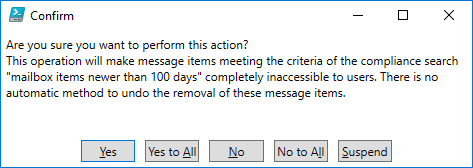
If you don’t specify the -PurgeType attribute, the results will be soft-deleted, meaning that users will be able to recover those deleted items before the retention period passes. The HardDelete value purges items for good, unless there is Litigation Hold or Retention Policy set up to prevent deleting certain items. Mind that the “10 items per mailbox” limit of the New-ComplianceSearchAction requires you to perform precision searches or looping the cmdlet.
Learn more about Retention Policies and Litigation Holds in Office 365
Troubleshooting
There are a few common problems you can run into during this procedure. Below, I list the most common errors and ways to counter them.
Not recognized as the name of a cmdlet
One of the most common errors known to PowerShell users is:
New-ComplianceSearchAction: The term 'New-ComplianceSearchAction' is not recognized as the name of a cmdlet, function, script file, or operable program. Check the spelling of the name, or if a path was included, verify that the path is correct and try again.
The problem is that there might be quite a few reasons for this warning to pop up:
- Problem: Failed to connect to the Microsoft Purview compliance portal
Solution: Run Get-PSSession to check if your remote sessions are Opened and Available. You can useGet-PSSession | Remove-PSSessionand repeat the steps from Prepare to use Compliance Search. Make sure to make to use the right credentials. - Problem: Failed to import module with available cmdlets
Solution: For some reason, your PowerShell session might have been unable to import the right Office 365 services module. To fix it, runGet-Module | Import-Module - Problem: Lack of permissions
Solution: If you lack permissions, you need to have them assigned to you. If you don’t have enough permissions to assign yourself a member of the right role group, you need to request access from another administrator. - Problem: Connection Timeout
Solution: Your remote session might time out after a while. To fix it, repeat the steps from prepare to use Compliance Search. - Problem: Misspelled cmdlet
Solution: I’ve seen New-ComplainceSearch more times than I’m willing to confess. I was even considering creating the New-ComplainceSearch alias for the right cmdlet. Maybe I’m the only one typing the cmdlets manually, but it doesn’t hurt to check your spelling if you do type a cmdlet. Also, you can always type in “New-Com” and tab your way to the right cmdlet. IntelliSense makes your life easier.
The search is still running
This error appears if you are too hasty or run searches with extremely broad criteria.
Unable to execute the task. Reason: The search "*" is still running or it didn't return any results. Please wait until the search finishes or edit the query and run the search again.
To speed up the search, make sure you are searching only the relevant directories.
To check
the status of Compliance Searches, run:
Get-ComplianceSearch | FL name,items,size,jobprogress,status
The compliance search object already exists
This error is caused by running New-ComplianceSearch with a name that already exists.
The compliance search object "*" already exists within your organization.
To fix it, either use a new unique name, or run Set-ComplianceSearch instead.