





Reject Direct Send is a simple Exchange Online setting that can help you secure your Microsoft 365 tenant against phishing.
Reject Direct Send was introduced in June 2025 (in Public Preview), and according to message center entry MC1093237, its GA rollout was planned to complete by early September 2025. This mechanism can help you secure your Exchange Online / Microsoft 365 environment against phishing. In this article, I’ll explain how it works and how to enable it. So, let’s dive right into it.
What is Direct Send?
Direct Send is a mechanism that allows you to send anonymous emails that look like they originated from your domain. By design, its purpose is to allow multifunction devices (I like to call them “printers”) or various apps and services to send emails on your behalf. Useful.
The greatest problem is that it can be (and has been) successfully used not only by the company that has the right to do so, but also by threat actors. They have used it, for example, to mimic internal emails and launch targeted phishing campaigns. Direct Send uses SMTP submission without authentication. Ouch!
It’s a bit like internal spoofing in Exchange Server, which I covered a while back. The difference is that Direct Send applies to Exchange Online and, unless you block it, almost everyone can use it to spoof internal users. Here’s a simplified Direct Send mail flow:
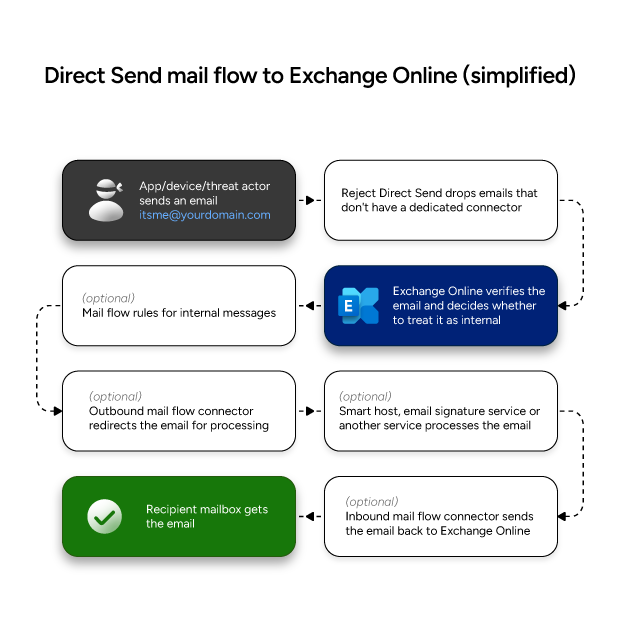
Reject Direct Send is a mechanism that limits the use of Direct Send in your Microsoft 365 organization. Before I explain how to enable Reject Direct Send, let me add some additional context about why Direct Send is something to keep a close eye on.
How can Direct Send be abused?
The worst-case scenario is using Direct Send for various types of attacks on your company. It might be phishing, it might be spreading malware or gathering confidential info. Direct Send works similarly to anonymous emails, and it should be easily stopped by SPF, DKIM and DMARC. However, whether the email is completely blocked or ends up in the Junk Email folder is a different story, and it depends on your settings.
The thing is, I often find legitimate emails in Junk Email, so it’s hard for me to treat this as a failproof mechanism and depend on it 100% of the time. And I don’t think I’m alone in this.
The worst thing about Direct Send is that using it doesn’t require any internal account compromise and bypasses perimeter controls.
Direct Send vs cloud email signatures
In the Microsoft’s original announcement about introducing the mechanism to reject Direct Send, the author mentioned that it can affect third-party services that process your emails. That’s what some email signature services (CodeTwo included) do to manage email signatures across the company.
Fortunately, this mechanism doesn’t affect CodeTwo signature services, no matter if you’re using cloud or Outlook mode. If you want to learn more, here’s a Knowledge Base article that explains it in detail.
What’s more, Direct Send, as the name suggests, sends the email directly to an Exchange Online mailbox. An email sent with Direct Send will never get an Outlook (client-side) email signature. On rare occasions, it can get a cloud (server-side) email signature, but only if the threat actor makes Exchange Online believe that the email is in fact internal.
There are two ways to combat it – the correct SPF, DKIM and DMARC setup, and using Reject Direct Send. I’ll explain both methods further in the article.
How to detect Direct Sent emails?
Microsoft is working on a report that checks all Direct Send traffic. In the meantime, one of the most reliable ways to check if an email was “Direct Sent” is looking at email headers. There are several header entries that suggest that Direct Send was used as the source of an email:
X-MS-Exchange-Organization-AuthAs: Anonymous(whereas proper internal emails have the valueInternal)X-MS-Exchange-CrossTenant-AuthAs: Anonymous(whereas proper internal emails have the valueInternal)- Any DirectSend mention (While I haven’t seen this one in person, I’ve seen mentions of the following header entry:
X-MS-Exchange-Transport-EndToEndLatency: DirectSend. Doesn’t hurt to check if you see it in the headers you analyze.)
If you take a closer look at the headers and the path the email took from submission to final destination, you might see some other suspicious entries, like suspicious IPs or DNS timeouts.
Reject Direct Send in Exchange Online
Now for the star of the show: Reject Direct Send. This mechanism blocks Direct Send in your Exchange Online tenant from unauthorized sources. Turning it on is dead simple. First, connect to your Exchange Online organization using PowerShell and then run this one-liner:
Set-OrganizationConfig -RejectDirectSend $trueAround 30 minutes later, almost all Direct Send attempts should be blocked with the following non-delivery report message:
550 5.7.68 TenantInboundAttribution; Direct Send not allowed for this organization from unauthorized sourcesWhy almost all? Because there’s a scenario in which you can have Direct Send enabled and use it only for your internal purposes while blocking its use from unapproved sources. This is the perfect solution. The only thing you have to do to make this work for your legitimate Direct Send needs is to set up a partner mail flow connector for apps (or devices) that use the Direct Send mechanism.
To emphasize why protection against Direct Send is so important, let me add a short intermission about the two general types of phishing.
Two types of phishing attacks
There are two major types of phishing attacks: bulk and targeted.
Bulk attacks are the most common – they are usually very general and sent to thousands or millions of email users at a time. Usually, they lack quality, but since they are sent to so many recipients, someone is bound to get caught off guard.
Targeted attacks are less common but much more dangerous. They are personalized for your organization or for you specifically. To give you a rough example, it can be an email from your HR platform about a problem with your paycheck. Or an email from your boss, asking to handle an urgent task. The worst (the most effective) campaigns require some intel. Where do attackers get their information from?
- OSINT (Open-Source Intelligence) which means that the attacker gathers and analyzes publicly available information. Social media accounts, company blogs, websites, product videos… they can all be valuable sources of information about the company, the tools/services it uses, and so on. What’s more, there are many tools that automate data collection, so it’s not like a single hacker needs to follow your every post on LinkedIn.
- Direct access to your company resources. This can be gained in a number of ways. For example, if one of users has the same password for everything and this password leaks in just one service. Even if this specific user doesn’t have access to crucial company assets, their mailbox can be used to prepare the ground for the next step.
- Interviews with ex-employees. There are legitimate businesses that offer this kind of market research. And even a single disgruntled ex-employee can be a goldmine of information that can be useful to hackers.
Why am I writing about this? Because when someone uses Direct Send, there’s a good chance they are using it for the more dangerous, targeted attack type. That’s why we should bring out all our arsenal to combat those attackers, starting with the absolute basics.
SPF, DKIM and DMARC – the holy trinity of email security
It’s not the right place to explain SPF, DKIM and DMARC in detail, but I do have to mention these authentication methods in context of Direct Send, because using Direct Send assumes you’re protecting your company against anonymous emails with the “trinity”. So, a quick explanation:
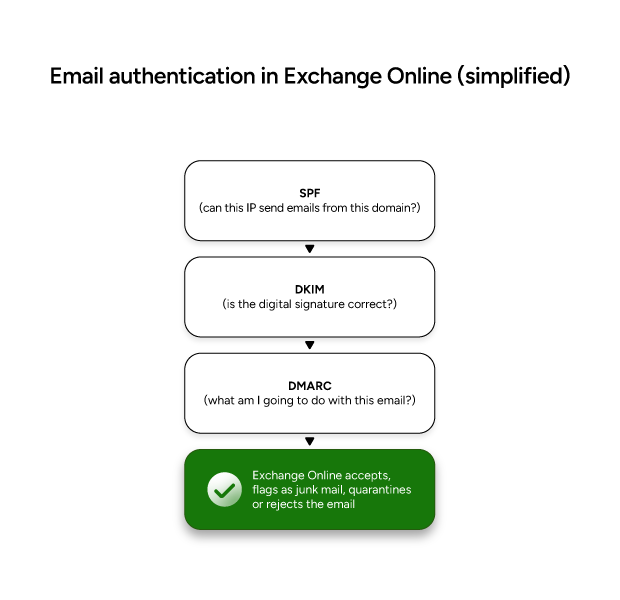
- SPF (Sender Policy Framework) – is the most basic authentication method. An SPF record is a text record in your DNS that specifies who can send emails on your behalf. The receiving email server verifies if the sending email server’s IP address matches the information in the record. Thanks to that, if someone pretends to send an email from your domain, SPF verification will fail, and the email will not be delivered or will be thrown into Junk Email.
- DKIM (DomainKeys Identified Mail) – is the more advanced authentication method. Just like with SPF, there’s a DKIM record stored in DNS. The main difference is that apart from the record on the server, there’s also a DKIM header attached to all emails sent from the domain. The record and the header together contain a pair of public and private keys that are used for verification.
- DMARC (Domain-based Message Authentication, Reporting and Conformance) – in the simplest terms, the DMARC record tells the receiving email server what to do when one or both of the checks above (SPF/DKIM) fail. A DMARC policy can instruct the server to quarantine those emails, block them, or delivered them despite red flags.
Oh, and there’s also BIMI. It’s a helpful add-on to the “trinity”, but it’s not yet supported in Exchange Online. I’ll make sure to cover this subject as soon as there’s any announcement about plans to introduce it.
If you’d like me to dive deeper into the subject of cryptography or how to set those authentication methods, drop me a comment below.
Other ways to combat phishing
There are other ways to combat phishing and secure your environment. Most of them won’t protect you specifically from Direct Send, but Direct Send is not the only attack vector used by threat actors.
Multifactor authentication (MFA)
Your cyber resilience is likely tested every single day. In my opinion, multifactor authentication is a must, since it can prevent a lot of attack vectors. The good news is that most companies already have it enabled, even with the basic security essentials policy. The not-so-great news is that some MFA methods offer better security than others. For example, security keys are a super-reliable protection method. Authenticator apps are quite reliable as well, but there are ways to bypass them. And verification codes via SMS are… better than nothing.
Here’s a guide that shows how to enable MFA in Microsoft 365
Prevent auto-forwarding
I’m a regular visitor to all kinds of tech forums, and I’ve seen a fair share of scenarios in which one or more users ended up with an inbox rule (aka Outlook rule, here’s more on managing them) that forwards their emails to an external address. It’s usually a symptom of one of the following:
- A security breach and, quite probably, someone setting the ground for another targeted attack.
- A user who wants to keep their finger on the company pulse at all times. They might even mean well.
Regardless of intentions, forwarding means that confidential company data is at risk. If you don’t block it, make sure you at the very least monitor it very closely.
Here’s how to securely manage automatic replies and forwards in a M365 organization
Raising awareness
Your company’s cybersecurity depends on every user. That’s why it’s crucial for IT experts to share at least some of their knowledge about cybersecurity. What I’ve learnt over the years is that most of the information about cybersecurity that comes to IT specialist naturally and seems to be obvious might sound like dark magic to “non-technical” users.
Simulate phishing attacks
Internal phishing campaigns are a good way to measure how cybersecurity-aware your company is. You can use Microsoft Defender to launch simulated attacks and see how many users click in malicious links and how many “sell their credentials” by trying to sign in on fake websites. Those tests, if done right, will help your company build resilience to some types of attacks.
Make it more difficult for threat actors
If an attacker does their research and launches a targeted campaign, it will most likely be believable and (at least to some extent) effective. To make phishing identification easier for end users, you can use some tricks that add “red flags” to both targeted and bulk attack methods:
- Add MailTips to all emails that come from outside of your company. Thanks to that, most emails that pretend to be internal will raise an immediate red flag.
- Use a unique internal email signature. While mentioning email signatures in context of security might sound strange, users usually notice that something is wrong when they get an external email signature (or no signature at all) in what appears to be an internal email. The more red flags, the lower the chance somebody falls victim to an attack.
How AI changes the threat landscape
The AI’s influence on cybersecurity is immense. There are all kinds of tools that simplify attackers’ job by automating tasks. Even the run-off-the-mill AI tools can help launch effective social engineering attacks and fine-tune phishing campaigns so that, for example, a phishing email doesn’t have as many red flags.
Stay safe: review your defenses regularly, because AI-driven threats won’t slow down.