





Archive mailboxes are the solution to the problem of limited data storage space in both on-premises and cloud Exchange. This concept, while not new, is somewhat unclear (partly to a number of names used to refer to it in Exchange documentation), even to people using Exchange email on a daily basis. Read on to leave your confusion behind and become an expert on email archiving in Exchange.

What isn’t the (true) archive mailbox?
Let’s begin in a kind of perverse way by discussing what an archive mailbox isn’t. You’ve probably already noticed that among your email folders in Outlook or Outlook on the web (OWA), there’s the Archive folder, which is created by default just like, for example, Deleted Items.
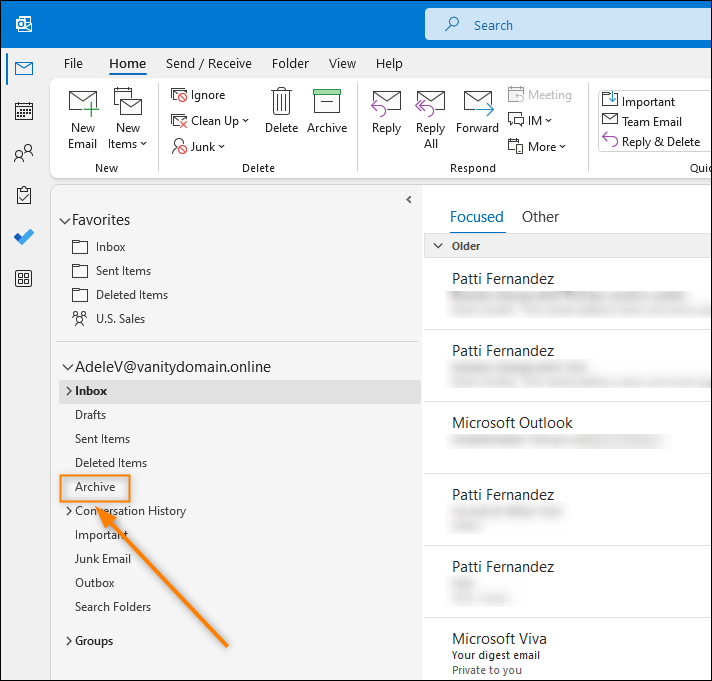
This is not a true archiving solution but only a folder that helps you better organize your emails. If you move an email to the Archive folder, e.g., by using the Backspace key or the Archive button, you won’t save any space in your Exchange mailbox. The folder is simply a part of your primary mailbox. What’s worth noting, an email moved to the Archive folder can be searched for like emails in other folders of your primary mailbox.
In-Place Archive vs. Online Archive
These are the names of the solutions that let you create a true archive mailbox in Exchange. By a true archive mailbox I mean the one which is independent of your primary one. Consequently, when you move old emails to the archive mailbox, you actually get more space in your primary one – and that’s what you want.
This independence is also reflected in Outlook and OWA, where the archive mailbox is displayed as a separate email account:
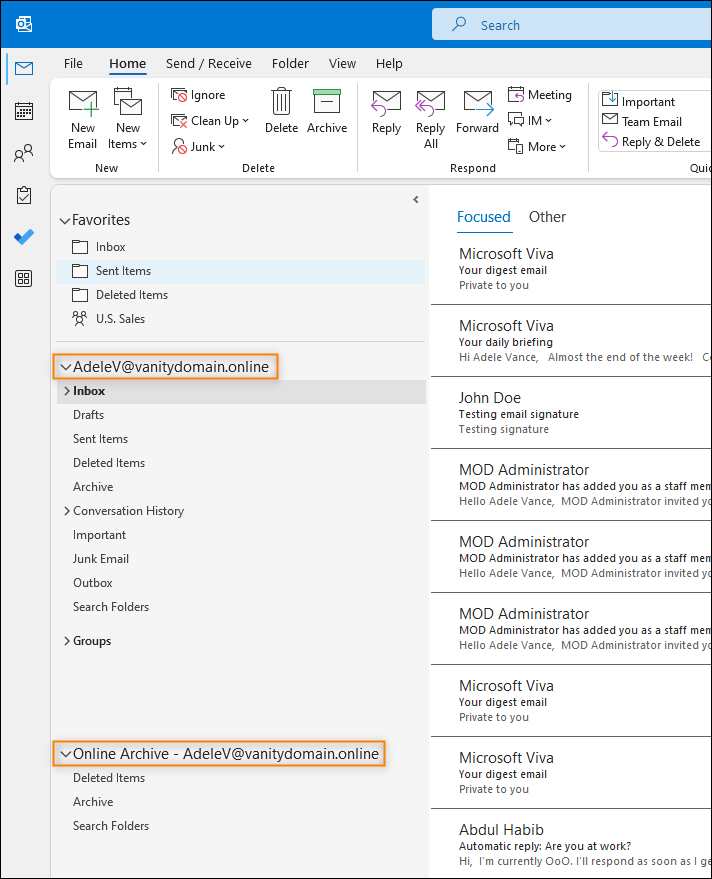
Going back to names, In-Place Archive and Online Archive are often used interchangeably, with the first one being more popular in the context of Exchange Server (on-premises) and the second – Exchange Online (cloud). Nevertheless, they are based on the same principles and let you achieve the same thing.
To quickly find the basic information about the two technologies, refer to the table below:
| Maximum archive mailbox size | Application scope | Licensing | |
|---|---|---|---|
| In-Place Archive (Exchange Server) | Unlimited | On-premises environments | Enterprise level of licensing2 |
| Online Archive (Exchange Online) |
From 50GB up to 1.5TB1 | Cloud and hybrid environments | Part of a plan, or bought as a separate add-on3 |
1 Maximum archive mailbox size depends on two factors: (a) Microsoft 365 plan and (b) whether the auto-expanding archiving feature is on. By default, a user gets a 50/100GB archive mailbox, depending on a plan. If an admin enables auto-expanding archiving (applicable to certain plans), a mailbox’s size can be gradually and incrementally increased up to 1.5TB. Learn more
2 A mailbox server must be assigned the Enterprise license and each user who requires an archive mailbox must be assigned the Enterprise CAL (Client Access License). Learn more
3 For a list of plans that include archiving features or require buying the Exchange Online Archiving add-on ($3.00 user/month), refer to this table. In case of on-premises users (hybrid environments), the users must be assigned the Enterprise CAL (see footnote no. 2).
How to enable the archive mailbox in Office 365 or on Exchange Server
The easiest way to enable the archive mailbox for a user is via the Exchange admin center (EAC). While the modern EAC lets you activate the mailbox for a single user at a time, with the classic EAC, you can do it for single, multiple and all users.
For those who prefer using scripts, there are cmdlets which do the job, regardless of the intended application scope.
To see detailed instructions for both the Exchange environments, refer to this article.
How to archive your emails in Outlook to save up space
There are several ways to move emails to the archive mailbox on a daily basis. I’m showing those methods below.
Note that after you move emails to the archive mailbox, you can still search for them and display them in Outlook and OWA. Just remember that your archive mailbox works independently of your primary one, so you need to click it in the left-hand pane before you start your search.
Move emails manually
Your end-users can simply drag and drop emails from primary to archive mailbox in Outlook and OWA. As simple as that.
Use MRM retention policies and retention tags
You, as an admin, can configure retention tags, create a retention policy based on the tags, and apply the policy to all or selected user mailboxes.
- See steps for Exchange Online
- See steps for Exchange Server (Note: When configuring a tag, choose Applied automatically to entire mailbox (default) and then choose Move to Archive as the retention action.)
Once you’ve configured everything, assigned your policy to user mailboxes, and applied it by running the Managed Folder Assistant, users’ emails will be automatically moved to the archive mailbox after reaching the age you’ve set.
Use Inbox rules (Outlook desktop only)
When you create a new rule in the Outlook desktop app, choose the move it to the specified folder action for the emails you want to move to your archive. Next, choose the desired folder (or create a new one) in your archive mailbox.
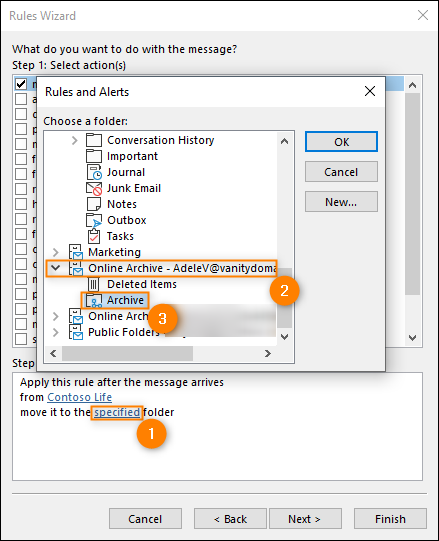
From now on, all the emails meeting the conditions of your rule will be moved to the specified folder in the archive mailbox when you receive them.
Learn how to manage inbox rules in Office 365 and Outlook on the web
Import emails from a PST file (Outlook desktop only)
If you have a PST file with your old emails, you can import them back to the archive mailbox. This way, they can be accessed more easily than from a PST file. In fact, if you have the archive mailbox enabled, using PST files for archiving purposes is no longer needed and reasonable. Learn more about the dark side of the PST files
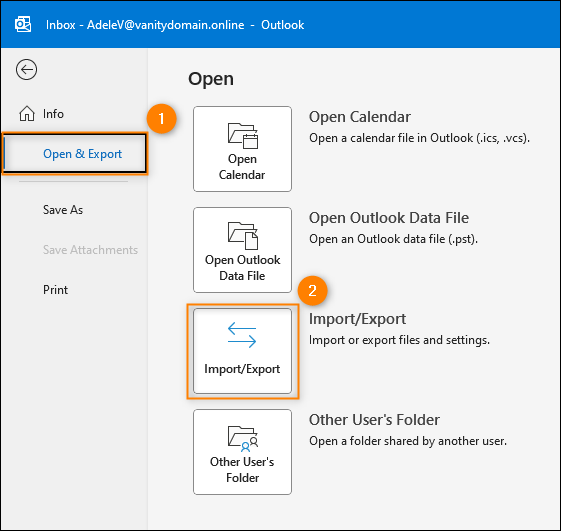
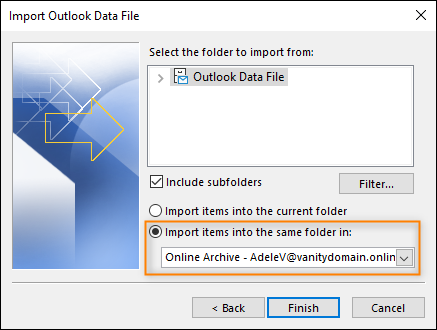
To import emails from a PST file, use the Outlook’s Import and Export Wizard that you can access by clicking File on the ribbon and going to Open & Export > Import/Export.
In the last step of the import wizard, choose the archive mailbox as the import destination:
How to increase the size of the archive mailbox
As stated earlier, the default size of the archive mailbox in Exchange Online is 50/100GB, depending on the Microsoft 365 plan. If this standard size is still not enough, you can enable the auto-expanding archiving feature (previously known as unlimited archiving). The feature repeatedly adds a storage quota of 100GB to the archive mailbox (depending on the current volume of data), until the maximum size of 1.5TB is reached. Note that it can take up to 30 days for the additional space to be provisioned. Learn more about auto-expanding archiving
See how to enable the auto-expanding archiving for entire organization or a specific user
In case of Exchange Server, the situation is less complex, as you’re only limited by the storage space of your server hardware.
Learn how to increase the storage quota for your on-premises archive mailboxes
Archive mailbox migration – things to consider for the future
If you use archive mailboxes in your environment, there’s one more important aspect you need to consider – the migration. Even if you’re not planning it now, mergers, acquisitions or even simple infrastructure changes might force the migration in the future.
Of course, there are native tools that let you migrate archive mailboxes from Exchange Server or Exchange Online but they are difficult to use (scripting required, lots of manual work) and offer limited functionality. Using a ton of PST files is also a complex process to coordinate that doesn’t offer the professional level of reliability, as discussed in this article. Last but not least, even Microsoft recommends using a third-party solution.
That’s why it’s a good idea to use one of the CodeTwo’s migration tools, depending on the target environment you want to migrate to. Both CodeTwo Office 365 Migration and CodeTwo Exchange Migration let you easily transfer your archive mailboxes along with primary ones (or even on their own), while offering a number of additional features you won’t find in the native solutions:
- 100% GUI based tool
- Public folders migration
- Delta migration
- Advanced scheduling options
- Automatic matching of source and target mailboxes
- Free technical support during the migration
- And many more.
If you would like to test how our tools handle primary and archive mailbox migration, you can trial them for 30 days for free. To sign up for a trial, click here (migration to Exchange Online / Microsoft 365) or here (migration to Exchange Server).
Read more:
- How to migrate mailboxes between Office 365 tenants?
- Roles and permissions needed for migration to Microsoft 365