

Close Menu
Altcoinvest
    What's Hot

    Aster DEX Surges 12% After Phase 4 Launch and Coinbase Support

    November 11, 2025

    US Treasury and IRS quietly expand tax breaks for the ultrawealthy and crypto giants: NYT

    November 10, 2025

    Bitcoin Events Announces Two Exciting Events in South Africa: ​ Crypto Fest 2024 and Blockchain Africa Conference 2024

    November 9, 2025
    Facebook X (Twitter) Instagram
    Altcoinvest
    • Bitcoin
    • Altcoins
    • Exchanges
    • Youtube
    • Crypto Wallets
    • Learn Crypto
    • Eureka Bridged PAX Gold (Terra)Eureka Bridged PAX Gold (Terra)(PAXG)$4,205.780.78%
    • bitcoinBitcoin(BTC)$102,891.00-3.00%
    • ethereumEthereum(ETH)$3,422.27-4.18%
    • tetherTether(USDT)$1.00-0.02%
    • rippleXRP(XRP)$2.39-5.55%
    • binancecoinBNB(BNB)$962.25-3.23%
    • solanaSolana(SOL)$156.27-6.69%
    • usd-coinUSDC(USDC)$1.000.00%
    • staked-etherLido Staked Ether(STETH)$3,418.24-4.21%
    • tronTRON(TRX)$0.2976020.67%
    Altcoinvest
    Home»Exchange»What to do if you cannot create an app password in Microsoft 365
    What to do if you cannot create an app password in Microsoft 365
    Exchange

    What to do if you cannot create an app password in Microsoft 365

    June 29, 2025
    Share
    Facebook Twitter LinkedIn Pinterest Email

    This article shows what you can do if you find out that app passwords are not working in your Microsoft 365 tenant.
    What to do if you cannot create an app password in Microsoft 365

    Some non-browser applications and services for Microsoft 365 use app passwords as an authentication method when multi-factor authentication (MFA) is enabled. The problem is that after enabling MFA for the organization, some or even all users may not be able to create and use app passwords.

    What are app passwords?

    App passwords are created for each MFA-enabled account to allow signing in to non-browser applications (in which case you are unable to use additional security verification methods, such as providing a code sent via a text message or approving a notification through the Microsoft Authenticator app). Those passwords don’t expire, and you can use them in different programs at the same time. However, from the security perspective, the best practice is to use one password per app, especially since each user can create up to 40 app passwords. This way, if any of those passwords gets compromised, you can delete it and continue using the remaining ones.

    Microsoft security policies prevent creating app passwords in Microsoft 365

    There are two most common reasons why a certain user might not be able to create or use an app password. The first is that users aren’t allowed to do so, the second – the specific user doesn’t have MFA enabled in the legacy MFA portal. See how to fix each of those issues below.

    Allow users to create app passwords

    1. Open the Microsoft 365 admin center and go to Users > Active users. Click the Multi-factor authentication button while no users are selected. This will let you access MFA settings. You need to be in the Authentication Administrator role (or the Global Administrator one) to access this resource.
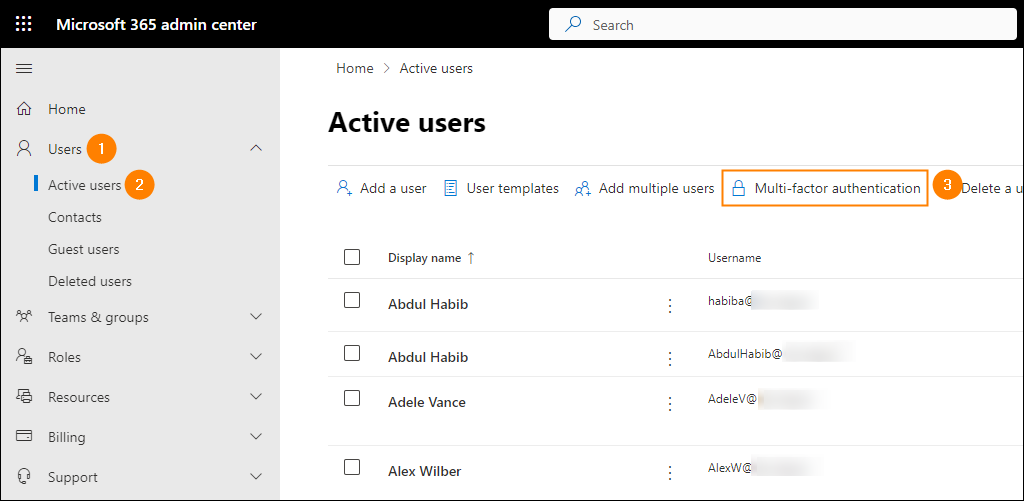
    Accessing the legacy per-user MFA settings from the  Microsoft 365 admin center
    1. (Optional) If you see the following screen, click Legacy per-user MFA to proceed.
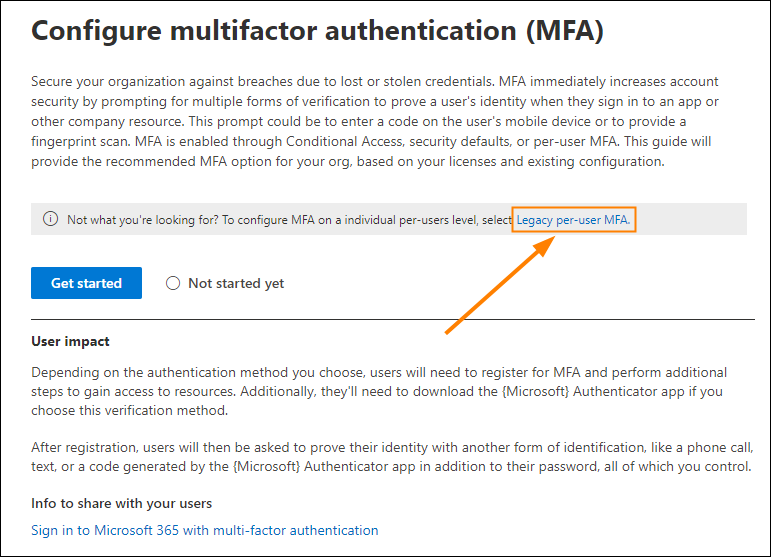
    Accessing the legacy per-user MFA settings from MFA wizard in the Microsoft 365 admin center
    1. On the service settings tab, choose Allow users to create app passwords to sign in to non-browser apps and save changes.
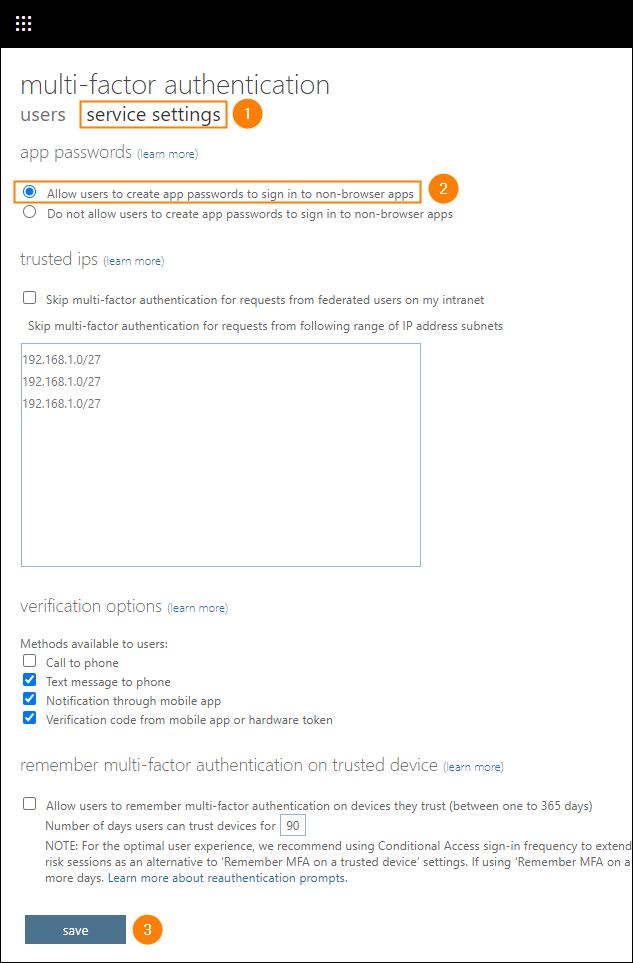
    Allowing users to create app passwords in Microsoft 365

    If this option is already enabled, but your users still cannot create app passwords, try the solution below.

    Enable and enforce MFA for a chosen user

    Users who don’t have MFA enabled will not be able to use app passwords. To allow those users to create and use app passwords, you must first turn MFA on and then enforce MFA for them, as shown below.

    1. In the MFA portal you accessed in the previous section, you can check which users have MFA turned on. If the affected user cannot create app passwords, enable MFA for them by selecting the user and choosing Enable. Confirm your choice in the popup that opens.
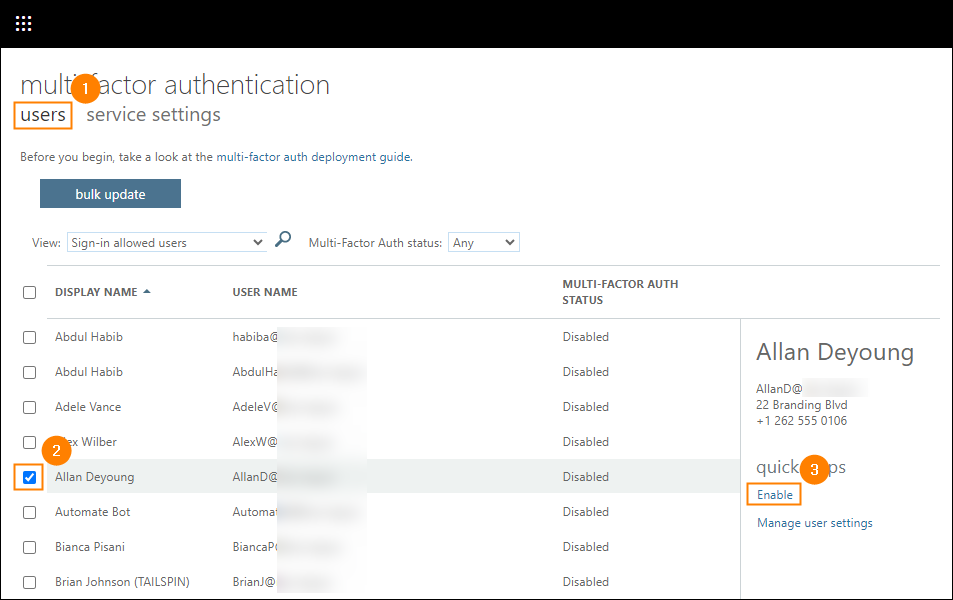
    Enabling MFA for a single user in Microsoft 365
    1. Next, select the same user again and enforce MFA for them by clicking Enforce. Again, confirm your choice by clicking enforce multi-factor auth in the popup that shows up.
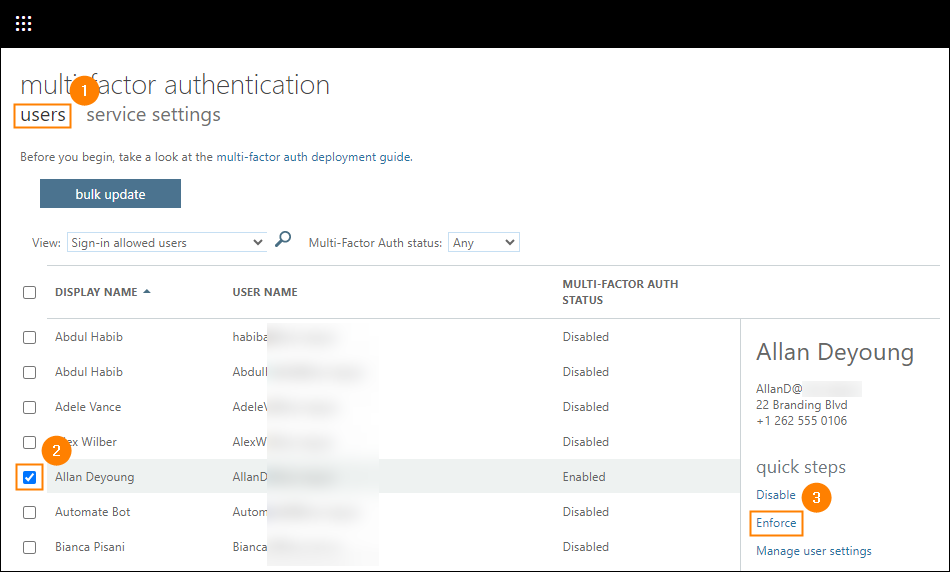
    Enforcing MFA for a single user in Microsoft 365
    1. Changes applied in the MFA portal can take a while to propagate. It may be also necessary for the affected user to sign out and sign in to their Microsoft 365 account. To make it quicker, you can go to the Active users page again and force sign-out the user:
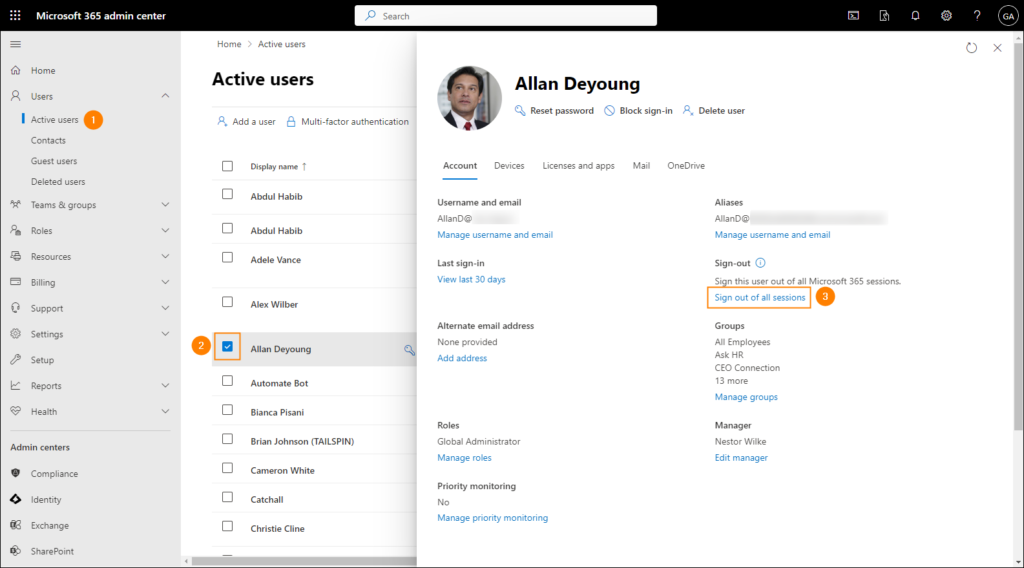
    Signing a user out of all sessions in Microsoft 365

    Now, the app password should appear for the user as one of the available authentication methods on the Security info page (link).
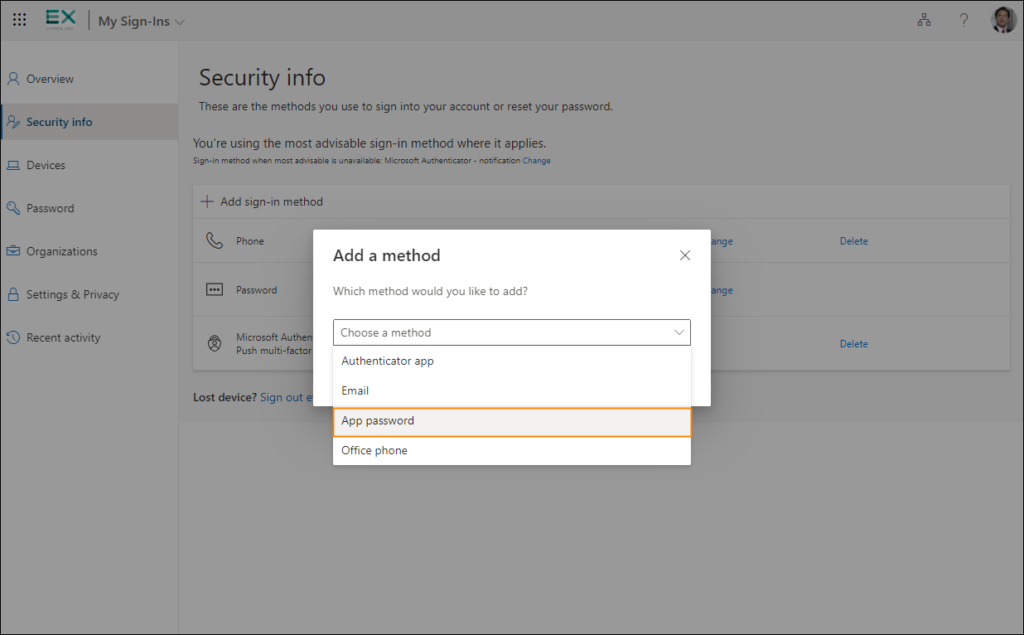
    App password becomes available as a sign-in method on the Security info page in Microsoft 365

    See also:

    • How to create and manage Microsoft 365 security groups
    • Blocking basic authentication in Office 365 (Microsoft 365)
    Share. Facebook Twitter Pinterest LinkedIn Tumblr Email

    Related Posts

    October 2025 Exchange Server Security Updates

    October 18, 2025

    Security Updates Exchange 2016-2019 & SE (Oct2025)

    October 16, 2025

    How to Fix Domain Reputation Block in Microsoft 365

    October 13, 2025

    How to Configure RBAC for Applications in Exchange Online

    October 4, 2025
    Add A Comment

    Comments are closed.

    Tweets by InfoAltcoinvest

    Top Posts

    October 2025 Exchange Server Security Updates

    October 18, 2025

    Security Updates Exchange 2016-2019 & SE (Oct2025)

    October 16, 2025

    How to Fix Domain Reputation Block in Microsoft 365

    October 13, 2025

    We Still Talk About You

    February 18, 2025

    Create Migration Endpoint in Microsoft 365

    July 7, 2025

    Crypto Pulls Back To Critical Level! [Warning]

    October 20, 2025

    Bitcoin Has a New Weekly Close Target Above $108,300

    October 19, 2025

    Altcoinvest is a leading platform dedicated to providing the latest news and insights on the dynamic world of cryptocurrencies.

    We're social. Connect with us:

    Facebook X (Twitter)
    Top Insights

    Aster DEX Surges 12% After Phase 4 Launch and Coinbase Support

    November 11, 2025

    US Treasury and IRS quietly expand tax breaks for the ultrawealthy and crypto giants: NYT

    November 10, 2025

    Bitcoin Events Announces Two Exciting Events in South Africa: ​ Crypto Fest 2024 and Blockchain Africa Conference 2024

    November 9, 2025
    Get Informed

    Subscribe to Updates

    Get the latest creative news from FooBar about art, design and business.


    Facebook X (Twitter)
    • Home
    • About us
    • Contact Us
    • Privacy Policy
    • Terms & Conditions
    © 2025 altcoinvest.com

    Type above and press Enter to search. Press Esc to cancel.